
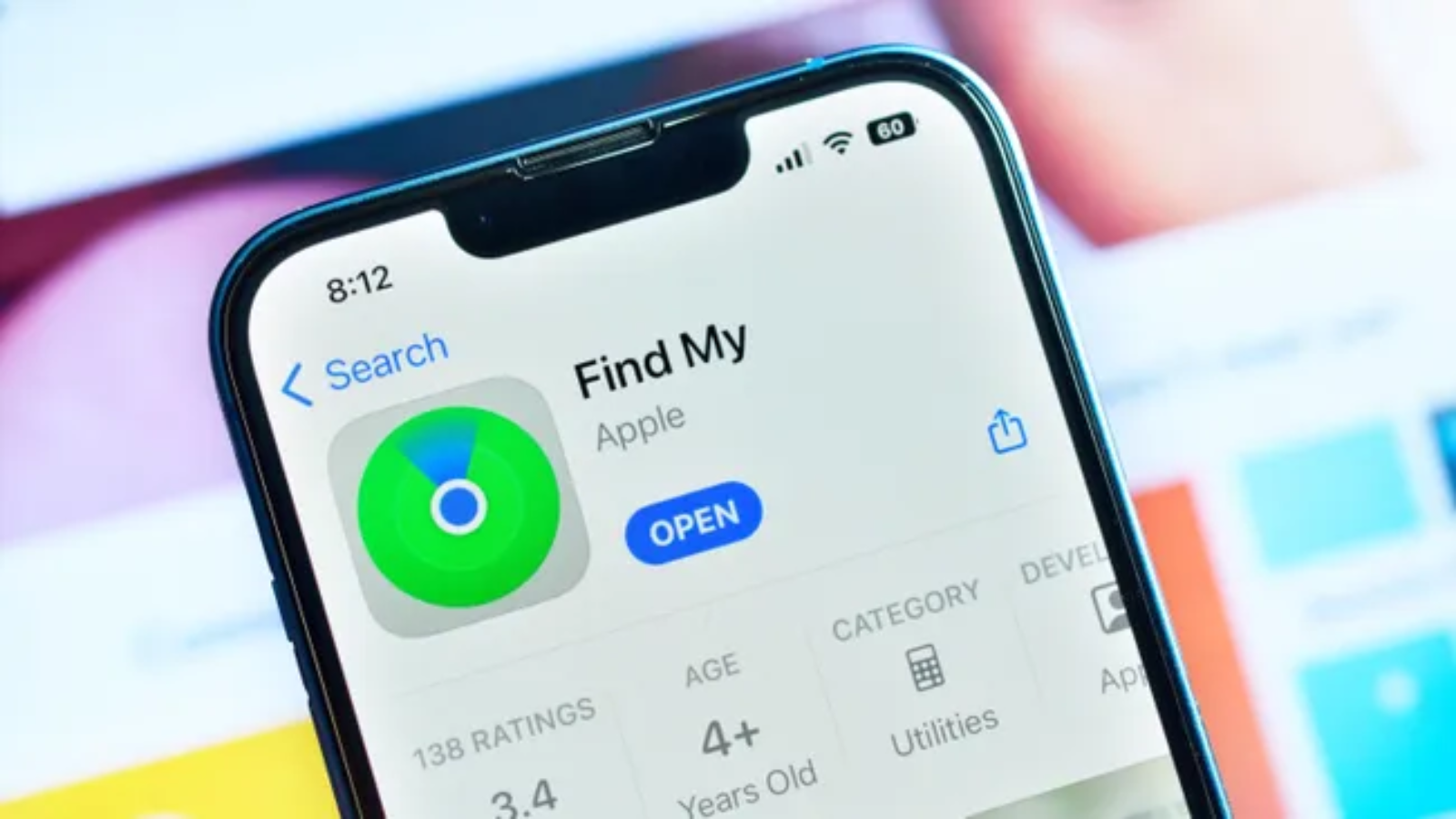
Misplacing your iPhone can be stressful, but Apple’s Find My feature is designed to make recovery much easier. Whether your phone slipped between couch cushions, was left at a café, or was stolen while traveling, Find My gives you several tools to locate and protect your device remotely.
Over the years, Apple has expanded Find My far beyond simple GPS tracking. Today, it can help you locate devices that are offline, play a sound to pinpoint a nearby iPhone, activate Lost Mode, remotely erase personal data, and even help locate AirPods, Apple Watch, Macs, and AirTags using the same ecosystem.
This guide explains how to set up and use Find My iPhone, what each feature does, and how to maximize your chances of recovering a lost Apple device.
What Is Find My iPhone?
Find My iPhone is part of Apple’s Find My app, which combines device tracking, location sharing, and item finding into a single service.
Once enabled, Find My allows you to:
- Locate your iPhone on a map
- Play a sound to help find it nearby
- Lock the device using Lost Mode
- Display a custom contact message
- Suspend Apple Pay cards
- Erase your iPhone remotely if necessary
- Locate other Apple devices linked to your Apple Account
Before You Can Use Find My
Find My must be enabled before your device goes missing.
To verify it’s turned on:
- Open Settings.
- Tap your Apple Account name.
- Select Find My.
- Tap Find My iPhone.
- Enable:
- Find My iPhone
- Find My network
- Send Last Location
These settings improve your chances of recovering a lost device, even if its battery is low or it isn’t connected to Wi-Fi.
How to Find a Lost iPhone
If your iPhone goes missing, there are two easy ways to locate it.
Option 1: Use Another Apple Device
Open the Find My app on:
- iPhone
- iPad
- Mac
Choose the Devices tab and select your missing iPhone.
You’ll see:
- Current location
- Battery level (when available)
- Directions in Maps
- Available actions such as Play Sound or Lost Mode
Option 2: Use iCloud
If you don’t have another Apple device:
- Visit iCloud Find Devices in a web browser.
- Sign in using your Apple Account.
- Select your missing iPhone.
- View its location or perform remote actions.
What Does “Play Sound” Do?
If your iPhone is nearby—but you can’t see it—tap Play Sound.
Your device will emit a loud alert, making it much easier to locate under furniture, inside a backpack, or in another room.
This feature works even if the phone is set to silent mode.
How Lost Mode Works
If your iPhone isn’t nearby, the next step is enabling Lost Mode.
Lost Mode:
- Locks your iPhone immediately.
- Requires your passcode to unlock.
- Suspends Apple Pay cards.
- Displays a custom message on the Lock Screen.
- Allows someone who finds the device to contact you.
A typical message might read:
“This iPhone has been lost. Please call +1-555-123-4567.”
Can Find My Locate an Offline iPhone?
Yes.
Modern iPhones support the Find My network, allowing nearby Apple devices to anonymously detect and relay the approximate location of a lost iPhone—even if it isn’t connected to Wi-Fi or cellular service. This encrypted system significantly improves the chances of locating a missing device.
What Is Send Last Location?
When enabled, Send Last Location automatically uploads your iPhone’s last known location to Apple before the battery is completely depleted.
If your device powers off due to a low battery, you’ll still be able to see where it was last detected.
How to Erase Your iPhone Remotely
If you believe your device won’t be recovered—or it contains highly sensitive information—you can erase it remotely.
Steps:
- Open Find My.
- Select your missing device.
- Choose Erase This Device.
- Confirm your decision.
This removes your personal data, including photos, messages, apps, and stored information.
Important: Once erased, you won’t be able to continue tracking the device unless it’s still associated with your Apple Account through Activation Lock.
Can Find My Locate Other Apple Devices?
Absolutely.
The same app works with:
- iPad
- Mac
- Apple Watch
- AirPods
- AirTag
- Compatible third-party accessories
Everything appears within the same Find My interface.
Share Your Location with Family and Friends
Find My isn’t only for lost devices.
You can also share your live location with trusted contacts.
Common uses include:
- Meeting friends
- Family safety
- Travel coordination
- Helping relatives locate your device
You remain in control and can stop sharing your location at any time.
Tips to Improve Recovery Chances
If you rely on Find My, follow these best practices:
- Keep Find My enabled at all times.
- Turn on Find My network.
- Enable Send Last Location.
- Use Face ID or a strong passcode.
- Keep your iPhone updated.
- Add trusted emergency contacts.
- Regularly back up your data to iCloud.
These simple steps can make a significant difference if your device is ever lost.
Common Mistakes to Avoid
Many users accidentally reduce the effectiveness of Find My by:
- Turning it off after setup.
- Disabling Location Services.
- Forgetting their Apple Account password.
- Ignoring software updates.
- Not enabling Send Last Location.
Checking these settings periodically ensures your iPhone remains protected.
Security Warning: Beware of Fake “Find My” Messages
If your iPhone is lost or stolen, scammers may send text messages or emails claiming your device has been found.
These messages often contain fake links designed to steal your Apple Account credentials.
Remember:
- Apple does not ask you to sign in through random SMS links.
- Access Find My only through the official Find My app or iCloud.
- Never enter your Apple Account password on an unfamiliar website.
The Future of Find My
Apple continues to improve Find My with each major iOS release. Recent updates have strengthened offline tracking, privacy protections, and device recovery features while expanding support for AirTags and compatible accessories.
Looking ahead, we can expect more precise location tracking, deeper integration across the Apple ecosystem, and additional security measures to help users recover lost devices while protecting personal data.
Final Verdict
Find My is one of the most valuable built-in security features available on an iPhone. It goes far beyond locating a misplaced device by offering remote locking, secure location tracking, offline detection through Apple’s Find My network, and the ability to erase sensitive information if recovery isn’t possible.
The key is preparation. Enable Find My, Find My network, and Send Last Location before you ever need them. Those few minutes of setup can make the difference between quickly recovering a misplaced iPhone and permanently losing access to your device and data.
Frequently Asked Questions
Can Find My locate an iPhone that is turned off?
Yes. Supported iPhone models can be located after they’re powered off using Apple’s Find My network, provided the feature was enabled beforehand.
Does Find My work without an internet connection?
Yes. Nearby Apple devices can securely relay the approximate location of your iPhone through the Find My network, even when your device is offline.
Can I use Find My from a web browser?
Yes. You can sign in to Apple’s iCloud Find Devices page using your Apple Account to locate, lock, or erase your iPhone remotely.
What happens when I enable Lost Mode?
Lost Mode locks your iPhone, suspends Apple Pay, displays your contact information on the Lock Screen, and helps protect your personal data while you search for the device.
Should I erase my iPhone immediately if it’s stolen?
Not necessarily. It’s generally best to activate Lost Mode first and continue monitoring its location. If recovery appears unlikely or your sensitive information is at risk, you can remotely erase the device through Find My.