Duff Foreman Could Make History as First Known AI Broadcast Personality to Join a Live Professional Golf Broadcast

The autonomous, conversational AI broadcast personality will join acclaimed golf broadcasters Notah Begay III and Ryan Burr during the 2026 New Mexico Open at Turtleback Mountain Golf & Resort.

ELEPHANT BUTTE, N.M. (July 17, 2026) (ACI Newswire) — The 2026 New Mexico Open could become the first professional golf tournament to feature an autonomous, conversational AI broadcast personality interacting live with human hosts during tournament coverage.

Duff Foreman™, an artificial intelligence broadcast personality created by Gopher Hole Productions for live golf coverage and extreme golf expeditions, is scheduled to join the broadcast team Sept. 14–16 at Turtleback Mountain Golf & Resort.

Based on a review of publicly available information, tournament organizers believe no professional golf tournament has previously featured an autonomous, conversational AI broadcast personality appearing on-screen and interacting live with human hosts during tournament coverage.

Foreman will join acclaimed golf broadcasters Notah Begay III and Ryan Burr throughout the 2026 New Mexico Open at Turtleback Mountain Golf & Resort Presented by New Mexico True. Unlike conventional AI systems that primarily generate statistics, graphics or voice narration, Foreman is designed to engage in live, unscripted conversations with the broadcast team while tournament play unfolds.

Throughout the telecast, he is expected to provide golf strategy, player swing analysis, course-management insights and real-time commentary by drawing upon information ranging from weather, course conditions and player tendencies to historical performance and the Rules of Golf. Rather than simply reporting what happened, Foreman is designed to help viewers understand why players make certain decisions, giving fans greater insight into the strategy behind every shot.

“Golf fans are always looking for a better understanding of what players are thinking and why they make certain decisions,” Begay said. “If Duff Foreman delivers what we’re expecting, he’ll become another voice in the broadcast, helping us explain strategy, analyze swings, consider changing conditions like weather and course setup, and answer questions in real time. I think that kind of conversation could make the game more interesting and enjoyable for viewers.”

Begay is a four-time PGA TOUR winner and golf analyst for NBC Sports and Golf Channel, where he has covered PGA TOUR events, major championships and other professional golf competitions. Burr is a veteran sports broadcaster whose career includes NBC Sports, Golf Channel, ESPN and numerous other national sports networks.

“Joining Notah, Ryan and the broadcast team at the New Mexico Open is an incredible opportunity for me,” Foreman said. “Golf is full of fascinating decisions that often go unnoticed. I’m looking forward to helping fans better understand those moments and showing them why Turtleback Mountain Golf & Resort is such a memorable place to play and watch championship golf.”

“Bringing Duff Foreman to the New Mexico Open is another example of how this tournament continues to evolve,” said Cory Armstrong, executive director of the Sun Country Section of the PGA of America. “Golf broadcasting has always found new ways to bring fans closer to the game. Watching Duff interact naturally with our broadcast hosts, analyze player swings, answer questions in real time, and add another voice to the conversation could represent another step forward in how fans experience a golf broadcast.”

James Prendamano, CEO and Co-Founder of PreReal Investments and owner of Turtleback Mountain Golf & Resort, has long been an advocate for applying artificial intelligence to identify new opportunities, accelerate innovation and solve complex business challenges. For Prendamano, the 2026 New Mexico Open provides an opportunity to demonstrate how conversational AI can move beyond simple automation and become an active participant in a live broadcast. He believes Duff Foreman’s participation in the tournament will help people better understand how AI personalities can enhance the spectator experience at golf tournaments and other sporting events. He also believes AI personalities like Duff Foreman have the potential to transform sports broadcasting while also creating new opportunities in hospitality, education, real estate and many other industries.

“We’re always looking for ways to make the experience better for the people who visit Turtleback Mountain Golf & Resort,” Prendamano said. “Duff gives us the opportunity to introduce an AI personality that people haven’t seen before and explore new ways to make a live sporting event more informative, engaging and enjoyable. If it gets people talking about the New Mexico Open and starts a broader conversation about how AI personalities can enhance sports broadcasting and other industries, then we’ve accomplished exactly what we set out to do.”

Tournament officials expect Foreman’s debut to become one of the signature attractions of championship week. The combination of championship golf, nationally recognized broadcasters and an autonomous, conversational AI broadcast personality could generate national media attention while introducing new audiences to the New Mexico Open, Turtleback Mountain Golf & Resort and southern New Mexico. As Presenting Sponsor, New Mexico True is partnering with the championship to showcase New Mexico’s world-class golf, breathtaking landscapes and authentic travel experiences.

“New Mexico is known for its extraordinary places to explore, and it has also earned a reputation for innovation,” said Lancing Adams, Acting Cabinet Secretary of the New Mexico Department of Tourism. “As Presenting Sponsor through New Mexico True, we’re proud to help showcase championship golf at Turtleback Mountain Golf & Resort while introducing visitors to everything that makes southern New Mexico such a remarkable destination.”

The 2026 New Mexico Open is expected to attract players, fans and media from across the region while showcasing one of New Mexico’s premier golf destinations to a broader audience. Whether remembered for championship golf, groundbreaking broadcast innovation or the natural beauty of southern New Mexico, this year’s event could establish a new benchmark for how golf championships are presented and experienced.

The 2026 New Mexico Open at Turtleback Mountain Golf & Resort Presented by New Mexico True is open to the public and will be held Sept. 14–16, 2026, at Turtleback Mountain Golf & Resort in Elephant Butte, New Mexico. Admission is free throughout championship week.

Trademark Notice: Duff Foreman™ is a trademark of Gopher Hole Productions, LLC.

About Gopher Hole Productions

Gopher Hole Productions, LLC is an artificial intelligence, media, entertainment and technology company that develops AI-powered personalities and original intellectual property to create next-generation fan experiences for the sports and entertainment industries. Through emerging AI technologies, innovative storytelling, real-time content creation and human interaction, the company creates and commercializes proprietary content for streaming services, digital platforms, social media and broadcast networks. Headquartered in Massachusetts, Gopher Hole Productions is the creator of X-treme Golf™, Duff Foreman™, an autonomous AI personality developed for live sports broadcasting and interactive fan engagement, and Motion Analytic Intelligence™, the company’s proprietary AI-powered sports analytics platform.

About Turtleback Mountain Golf & Resort

Turtleback Mountain Golf & Resort, home of the New Mexico Open, is a premier golf, residential and resort community located in Elephant Butte, New Mexico, just minutes from Elephant Butte Lake. The property features an 18-hole championship golf course, residential neighborhoods, planned resort amenities, and a growing calendar of golf, lifestyle and community events. As one of southern New Mexico’s premier destination communities, Turtleback Mountain Golf & Resort is helping drive tourism, residential investment and economic growth throughout Sierra County while providing an exceptional experience for golfers, homeowners, visitors and future resort guests.

About the New Mexico Open

The New Mexico Open is New Mexico’s premier state golf championship, bringing together many of the Southwest’s top professional and amateur golfers to compete in a 54-hole stroke-play tournament for one of the region’s largest purses. Organized by the Sun Country Section of the PGA of America, the championship has been played annually since 1954 and showcases elite competition while celebrating the game’s tradition and growth throughout the state. Since 2025, the tournament has been hosted at Turtleback Mountain Golf & Resort under a multi-year agreement.

About the Sun Country Section of the PGA of America

The Sun Country Section of the PGA of America serves more than 300 PGA of America Golf Professionals across New Mexico and West Texas. Through professional education, player development, tournament administration and community outreach, the Section supports the growth of the game while promoting excellence in golf instruction, player engagement and facility operations. The Section conducts championships and qualifying events, develops junior and recreational golf programs, and works with golf facilities, industry partners and local communities to expand participation and strengthen the game throughout the region. For more information, visit SunCountryGolf.com.

About New Mexico True

New Mexico True is the official tourism brand of the New Mexico Department of Tourism, created to promote the state as a premier travel destination for visitors seeking authentic experiences, outdoor adventure, rich culture and warm hospitality. Built around the promise of “Adventure Steeped in Culture,” New Mexico True showcases the people, landscapes, traditions, communities and experiences that make New Mexico the Land of Enchantment.

Patrick Pharris
PreReal Investments
+1 702-491-7464
Patrick@PreRealInvestments.com
 

Grammarly

What is Grammarly? Features, Pricing, Pros & Cons of the AI Writing Assistant

Writing has become a daily requirement for almost everyone. Students prepare assignments, professionals write emails, marketers create campaigns, businesses communicate with customers, and creators publish content across multiple platforms.

A small grammar mistake, unclear sentence, or wrong tone can affect how a message is received.

This is where Grammarly has become one of the most recognized AI writing assistants. Originally known as a grammar correction tool, Grammarly has expanded into a complete writing platform powered by artificial intelligence.

Today, it helps users improve grammar, rewrite sentences, adjust tone, generate ideas, and create clearer communication across apps and websites.

But with many new AI writing tools available, is Grammarly still worth using in 2026?

This review covers Grammarly’s features, benefits, limitations, pricing, and whether it is the right writing assistant for your needs.

What Is Grammarly?

Grammarly is an AI-powered writing assistant designed to help users improve written communication.

It analyzes text and provides suggestions related to:

  • Grammar
  • Spelling
  • Punctuation
  • Clarity
  • Sentence structure
  • Writing tone
  • Style
  • Word choice

Unlike a basic spell checker, Grammarly evaluates the context of your writing and suggests improvements based on meaning and readability.

The platform is used by:

  • Students
  • Writers
  • Business professionals
  • Content creators
  • Marketing teams
  • Researchers

It works across emails, documents, browsers, and many online platforms.

How Does Grammarly Work?

Grammarly uses artificial intelligence and natural language processing technology to understand written text.

A typical workflow:

  1. User writes or uploads content.
  2. Grammarly analyzes the text.
  3. Issues are highlighted.
  4. AI suggests improvements.
  5. User accepts, rejects, or edits suggestions.

The goal is not only correcting mistakes but improving how effectively your message communicates.

Grammarly Features

1. Grammar and Spelling Checker

Best for Error-Free Writing

Grammar correction remains Grammarly’s strongest feature.

It detects:

  • Spelling mistakes
  • Grammar problems
  • Missing punctuation
  • Incorrect words
  • Sentence errors
  • Formatting issues

For example:

Before:

“She dont know about the meeting.”

After:

“She doesn’t know about the meeting.”

These real-time suggestions help users fix mistakes while writing instead of editing everything later.

2. AI Writing Assistant

Best for Faster Content Creation

Modern Grammarly includes generative AI features that help users create and improve content.

Users can generate:

  • Email drafts
  • Ideas
  • Summaries
  • Replies
  • Paragraph improvements
  • Alternative versions

Useful examples:

A professional can create a formal email.

A marketer can rewrite promotional copy.

A student can improve assignment clarity.

The AI assistant focuses on supporting the writing process rather than completely replacing human creativity.

3. Sentence Rewriting

Grammarly helps improve sentences by suggesting:

  • Shorter wording
  • Better structure
  • More natural phrasing
  • Clearer explanations

Example:

Original:

“Due to the fact that the meeting was delayed, we were unable to complete our discussion.”

Improved:

“Because the meeting was delayed, we couldn’t finish our discussion.”

This feature is especially helpful for professional communication.

4. Tone Detection

A technically correct message can still sound inappropriate.

Grammarly analyzes writing tone and identifies whether text sounds:

  • Friendly
  • Confident
  • Formal
  • Casual
  • Professional

This is useful for:

  • Business emails
  • Customer communication
  • Job applications
  • Social media posts

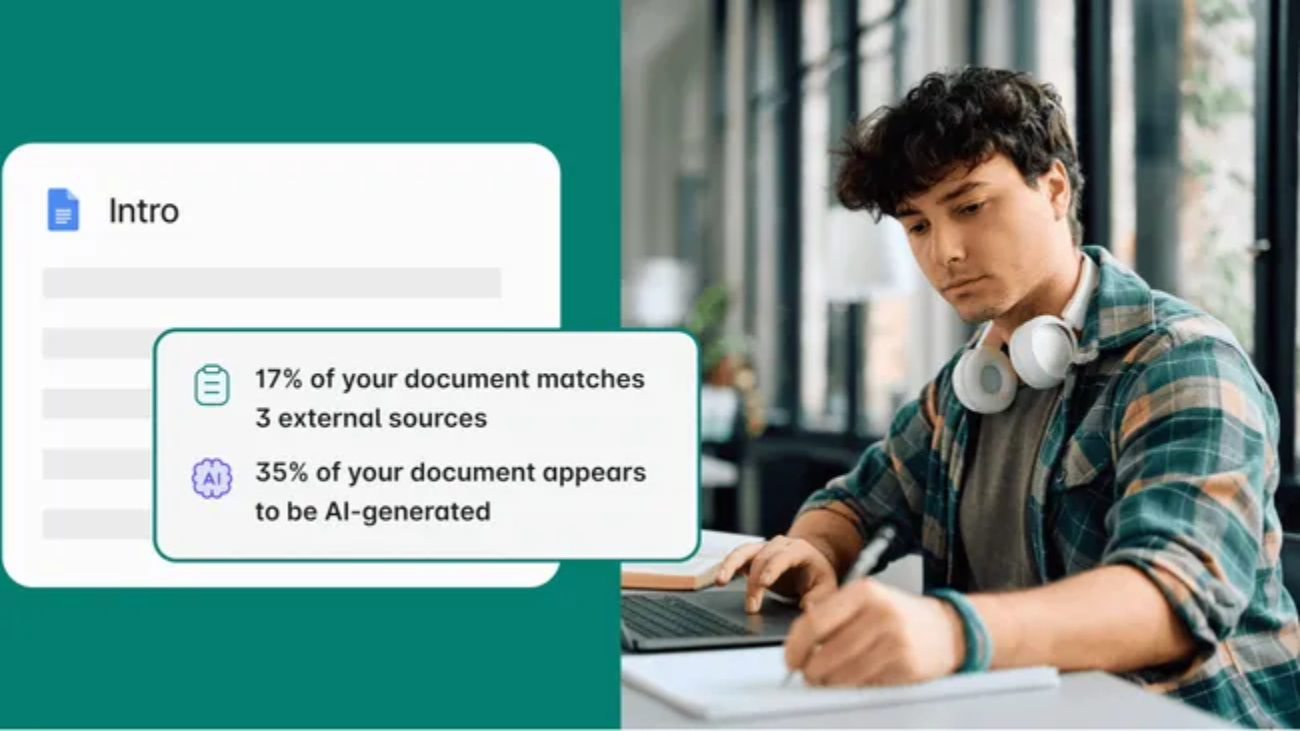
5. Plagiarism Checker

Grammarly Premium includes plagiarism detection designed for academic and professional writing.

It helps identify:

  • Similar online content
  • Missing citations
  • Potential originality problems

This feature is especially useful for:

  • Students
  • Researchers
  • Writers
  • Publishers

6. Writing Goals

Users can customize suggestions based on:

  • Audience
  • Formality
  • Intent
  • Writing style

Examples:

A business proposal needs a different tone compared with a personal blog post.

Grammarly adjusts recommendations based on these goals.

7. Grammarly Browser Extension

One of Grammarly’s biggest advantages is accessibility.

The browser extension works across:

  • Gmail
  • Google Docs
  • Social platforms
  • Online editors
  • Websites

It provides writing support without requiring users to copy text into another application.

8. Grammarly Desktop and Mobile Apps

Grammarly supports:

  • Windows
  • macOS
  • Android
  • iOS
  • Browser extensions

This allows users to improve writing across multiple devices.

Grammarly Free vs Premium

Grammarly Free

Includes:

  • Basic grammar correction
  • Spelling checks
  • Punctuation suggestions
  • Basic tone detection

Best for:

  • Casual writing
  • Students
  • Everyday users

Grammarly Premium

Adds:

  • Advanced grammar suggestions
  • Sentence rewriting
  • Tone improvements
  • Vocabulary suggestions
  • AI writing features
  • Plagiarism detection

Best for:

  • Professionals
  • Writers
  • Businesses
  • Content creators

Grammarly Pros and Cons

Pros

✔ Excellent grammar correction
✔ Easy to use
✔ Works across many platforms
✔ Real-time suggestions
✔ AI writing assistance
✔ Helpful tone improvements
✔ Beginner-friendly interface

Cons

✘ Premium features require subscription
✘ Suggestions are not always perfect
✘ Requires internet connection
✘ Not a replacement for human editing

Grammarly vs Traditional Spell Checkers

FeatureGrammarlyBasic Spell Checker
Grammar correctionAdvancedBasic
Tone analysisYesNo
AI rewritingYesNo
Context understandingStrongLimited
Style suggestionsYesLimited
Browser supportExtensiveLimited

Traditional spell checkers catch mistakes. Grammarly focuses on improving communication quality.

Grammarly vs QuillBot

Both tools improve writing but focus on different areas.

FeatureGrammarlyQuillBot
Grammar checkingExcellentGood
ParaphrasingGoodExcellent
Tone suggestionsStrongLimited
Professional writingStrongGood
SummarizingAvailableStrong

Choose Grammarly for editing and communication improvement.

Choose QuillBot mainly for rewriting and paraphrasing.

Who Should Use Grammarly?

Students

Useful for:

  • Essays
  • Assignments
  • Reports
  • Research writing

Professionals

Helpful for:

  • Emails
  • Presentations
  • Business documents

Writers and Bloggers

Supports:

  • Articles
  • Editing
  • Proofreading
  • Content improvement

Businesses

Teams can improve:

  • Brand communication
  • Customer responses
  • Internal documents

Is Grammarly Accurate?

Grammarly is highly effective for catching common writing issues.

However, users should review suggestions manually because:

  • AI may misunderstand context.
  • Creative writing styles vary.
  • Technical language may require expert review.

The best approach is using Grammarly as an assistant rather than accepting every suggestion automatically.

How AI Is Changing Grammarly

AI has transformed Grammarly from a correction tool into a broader writing assistant.

Modern AI features focus on:

  • Generating drafts
  • Improving clarity
  • Adjusting tone
  • Understanding context
  • Increasing productivity

AI writing assistants continue moving toward personalized support that adapts to individual writing styles.

Grammarly Alternatives

Popular alternatives include:

QuillBot

Best for paraphrasing and rewriting.

ProWritingAid

Best for detailed writing reports.

Microsoft Editor

Best for Microsoft 365 users.

LanguageTool

Best open-source style alternative.

Is Grammarly Worth It in 2026?

Yes, Grammarly remains one of the strongest AI writing assistants for users who regularly write online.

The free version is enough for basic corrections, while Premium offers more value for:

  • Professionals
  • Writers
  • Students
  • Businesses

Its biggest strength is convenience—Grammarly improves writing wherever you already work.

Final Verdict

Grammarly has successfully evolved from a simple grammar checker into a complete AI-powered writing assistant.

Its real-time corrections, tone analysis, rewriting suggestions, AI assistance, and broad platform support make it useful for almost anyone who writes regularly.

While it cannot replace creativity, expertise, or human judgment, Grammarly is excellent at making writing clearer, cleaner, and more professional.

For students, professionals, marketers, and everyday users, Grammarly remains one of the best writing improvement tools available in 2026.

Frequently Asked Questions

What is Grammarly?

Grammarly is an AI-powered writing assistant that checks grammar, spelling, clarity, tone, and helps improve written communication.

Is Grammarly free?

Yes. Grammarly offers a free version with basic writing corrections. Premium plans unlock advanced features.

Is Grammarly good for students?

Yes. Students use Grammarly for essays, assignments, proofreading, and improving writing clarity.

Can Grammarly write content using AI?

Yes. Grammarly includes AI writing tools that can help generate drafts, rewrite text, and improve communication.

Is Grammarly better than QuillBot?

Grammarly is better for grammar, editing, and tone improvement. QuillBot is stronger for paraphrasing and rewriting.

best VPN service

Best VPN Services in 2026: Top VPN Apps for Privacy, Streaming, Security & Fast Browsing

Every time you connect to the internet, your device shares information about your location, connection, and online activity. Whether you’re working from public Wi-Fi, streaming content, traveling internationally, or simply protecting your personal data, a reliable VPN service can add an important layer of privacy and security.

VPNs (Virtual Private Networks) create encrypted connections between your device and the internet, helping protect your data from unwanted monitoring while giving users more control over their digital experience.

Modern VPN services have evolved far beyond simple privacy tools. The best VPNs in 2026 include faster protocols, threat protection, malware blocking, password security features, streaming optimization, and support for multiple devices.

This guide compares the best VPN providers available today and explains which service fits different users.

What Is a VPN?

A VPN (Virtual Private Network) is a privacy tool that creates an encrypted tunnel between your device and a VPN server.

Without a VPN:

Your Device → Internet Provider → Website

With a VPN:

Your Device → Encrypted VPN Connection → VPN Server → Website

This helps hide your real IP address and protects data traveling through your internet connection.

What Does a VPN Do?

A VPN can help with:

  • Protecting data on public Wi-Fi
  • Hiding your IP address
  • Improving online privacy
  • Reducing tracking
  • Secure remote work access
  • Accessing services while traveling
  • Protecting browsing activity

However, a VPN is not complete security by itself. Users still need strong passwords, safe browsing habits, and updated software.

How to Choose the Best VPN

Before choosing a VPN, consider these important factors.

Security and Privacy

Look for:

  • Strong encryption
  • No-logs policy
  • Independent audits
  • Kill switch
  • DNS leak protection

Speed Performance

A good VPN should maintain fast connections for:

  • Streaming
  • Gaming
  • Video calls
  • Downloads

Modern VPN protocols like WireGuard and proprietary alternatives have significantly improved speeds.

Device Support

A quality VPN should support:

  • Windows
  • macOS
  • Android
  • iPhone
  • Linux
  • Smart TVs
  • Browsers

Server Network

More server options can provide:

  • Better connection reliability
  • Faster nearby servers
  • More location choices

Best VPN Services in 2026

1. NordVPN

Best Overall VPN Service

NordVPN remains one of the strongest VPN choices because it combines speed, security, and advanced features.

It is designed for users who want a balance between privacy protection and everyday usability.

Key Features

  • High-speed VPN servers
  • No-logs policy
  • Advanced encryption
  • Threat protection tools
  • Meshnet feature
  • Dark web monitoring
  • Kill switch
  • Multi-device support

NordVPN performs especially well for users who want security without sacrificing browsing speed.

Best For

  • Privacy-focused users
  • Streaming
  • Remote workers
  • Everyday protection

Pros

✔ Excellent performance
✔ Strong security tools
✔ Easy applications
✔ Large server network

Cons

✘ Renewal pricing can increase

2. Surfshark

Best Budget VPN

Surfshark has become popular by offering premium VPN features at a competitive price.

Its biggest advantage is unlimited device connections, making it attractive for families and users with many devices.

Features Include

  • Unlimited devices
  • Fast VPN speeds
  • Kill switch
  • Split tunneling
  • Ad blocking tools
  • Private browsing features

Best For

  • Families
  • Budget users
  • Multiple devices

Pros

✔ Affordable pricing
✔ Unlimited connections
✔ Beginner-friendly apps

Cons

✘ Some advanced competitors offer more security features

3. ExpressVPN

Best VPN for Beginners

ExpressVPN focuses on simplicity, reliability, and strong security.

Its apps are designed so even first-time VPN users can connect quickly.

Features

  • Simple interface
  • Strong encryption
  • Private DNS
  • Lightway protocol
  • Wide device support
  • Password manager features

ExpressVPN is especially useful for users who want security without adjusting many technical settings.

Best For

  • Beginners
  • Travelers
  • Everyday browsing

4. Proton VPN

Best Privacy-Focused VPN

Proton VPN is built around strong privacy principles.

Created by the team behind Proton Mail, it focuses heavily on security and transparency.

Features

  • Secure Core servers
  • Strong encryption
  • No-logs policy
  • Open-source applications
  • Advanced privacy controls

It is a strong choice for users who prioritize privacy above everything else.

Best For

  • Privacy enthusiasts
  • Journalists
  • Security-focused users

5. Private Internet Access (PIA)

Best VPN for Advanced Users

Private Internet Access gives users more customization than many competitors.

Advanced users can adjust security settings based on their needs.

Features

  • Customizable encryption
  • Split tunneling
  • Malware blocking
  • Large server network
  • Advanced settings

PIA is especially appealing for people who like more technical control.

6. PrivadoVPN

Best Free VPN Option

Many free VPNs have serious limitations, but PrivadoVPN offers a more trustworthy free experience.

Free plans usually include restrictions, but they can work for occasional users.

Best For

  • Light browsing
  • Occasional VPN users
  • Testing VPN features

Best VPN Comparison

VPNBest ForMain Advantage
NordVPNOverall usersSpeed + security
SurfsharkBudget usersUnlimited devices
ExpressVPNBeginnersEasy experience
Proton VPNPrivacyAdvanced protection
PIAAdvanced usersCustom controls
PrivadoVPNFree usersNo-cost option

Free VPN vs Paid VPN

Free VPN Advantages

  • No cost
  • Good for occasional use
  • Simple protection

Limitations

  • Data restrictions
  • Fewer servers
  • Slower speeds
  • Limited features

Paid VPN Advantages

Premium VPNs usually provide:

  • Faster speeds
  • More locations
  • Better privacy tools
  • Streaming support
  • More security features

Are VPNs Safe?

A trustworthy VPN can improve online privacy, but choosing the provider matters.

A secure VPN should have:

  • Transparent privacy policy
  • Strong encryption
  • Independent audits
  • No unnecessary data collection

Avoid unknown free VPN apps that do not clearly explain how they handle user information.

VPN for Streaming

Many users choose VPNs for streaming flexibility.

Important streaming features include:

  • Fast servers
  • Stable connections
  • Wide server coverage
  • Smart TV support

NordVPN, Surfshark, and ExpressVPN are commonly recognized for strong streaming performance.

VPN for Gaming

Gamers should prioritize:

  • Low latency
  • Fast servers
  • Stable connections

A VPN usually will not magically reduce ping, but a reliable service can help protect connections and improve security.

How AI Is Changing VPN Technology

VPN companies are adding smarter security features using AI.

Modern systems can help:

  • Detect dangerous websites
  • Block suspicious activity
  • Improve threat monitoring
  • Identify phishing attempts

VPNs are becoming broader cybersecurity platforms rather than simple privacy tools.

Future of VPN Services

VPN technology continues evolving as online privacy concerns increase.

Future improvements may include:

  • Faster encryption methods
  • Better privacy protection
  • Stronger anti-tracking tools
  • More passwordless security
  • AI-powered threat prevention

As online tracking becomes more sophisticated, privacy tools will continue adapting.

Final Verdict

The best VPN depends on your priorities.

NordVPN is the strongest overall choice for users wanting speed, security, and advanced tools. Surfshark provides excellent value with unlimited connections, while ExpressVPN focuses on simplicity and reliability.

For users who prioritize privacy, Proton VPN is a strong alternative, and advanced users may appreciate the customization offered by Private Internet Access.

A VPN is not a replacement for good cybersecurity habits, but choosing a reliable service can significantly improve privacy and protection while browsing online.

Frequently Asked Questions

What is the best VPN in 2026?

NordVPN is widely rated among the best VPN services because it combines fast speeds, strong security features, and user-friendly apps.

Is using a VPN legal?

VPNs are legal in many countries, but rules vary by region. Users should follow local laws and service terms.

Does a VPN make internet faster?

Usually no. VPNs may slightly reduce speed because traffic is encrypted, but premium VPNs minimize performance loss.

Can a VPN hide my IP address?

Yes. A VPN replaces your visible IP address with the VPN server’s IP address.

Are free VPNs safe?

Some reputable free VPNs exist, but many free services have limitations. Always choose providers with clear privacy policies.

Best productivity tool

Best Productivity Apps in 2026: Top Tools to Organize Work, Tasks, Teams & Daily Life

Staying productive is no longer about simply working more hours. With remote work, digital businesses, online learning, and growing workloads, people need smarter ways to organize tasks, manage information, communicate, and reduce repetitive work.

That’s where productivity apps have become essential.

The best productivity apps today go beyond basic to-do lists. They combine project management, collaboration, artificial intelligence, automation, calendars, document creation, and analytics to help individuals and teams work more efficiently.

From freelancers managing client projects to companies coordinating global teams, choosing the right productivity software can dramatically improve workflow and save valuable time.

This guide compares the best productivity apps available in 2026, their features, advantages, limitations, and which one fits your working style.

What Are Productivity Apps?

Productivity apps are digital tools designed to help users complete tasks faster, organize information, and improve efficiency.

They commonly include features such as:

  • Task management
  • Notes and documentation
  • Calendar planning
  • File sharing
  • Team communication
  • Project tracking
  • Time monitoring
  • Workflow automation
  • AI assistance

The goal is simple: spend less time managing work and more time completing meaningful tasks.

How to Choose the Best Productivity App

Before selecting an app, consider these important factors.

Ease of Use

A productivity tool should reduce complexity, not create more.

Look for:

  • Clean interface
  • Fast setup
  • Simple navigation
  • Easy collaboration

Collaboration Features

For teams, strong collaboration tools matter.

Useful features include:

  • Shared projects
  • Comments
  • Real-time editing
  • File attachments
  • Notifications

Integrations

A good productivity platform should connect with tools you already use, such as:

  • Email
  • Cloud storage
  • Calendar apps
  • Communication platforms
  • CRM systems

AI Features

Modern productivity apps increasingly include AI tools for:

  • Writing assistance
  • Meeting summaries
  • Task automation
  • Smart search
  • Content organization

Best Productivity Apps in 2026

1. Microsoft 365

Best Overall Productivity Suite

Microsoft 365 remains one of the most complete productivity ecosystems available.

Instead of focusing on one task, Microsoft combines documents, communication, cloud storage, and collaboration inside one platform.

Microsoft 365 includes:

  • Word
  • Excel
  • PowerPoint
  • Outlook
  • Teams
  • OneDrive
  • OneNote
  • Copilot AI tools

Its biggest advantage is how smoothly everything works together. Documents can be created, shared, edited, discussed, and stored without switching between multiple services.

Best For

  • Businesses
  • Professionals
  • Students
  • Remote teams

Pros

✔ Complete office package
✔ Excellent collaboration tools
✔ Cloud storage included
✔ AI-powered features

Cons

✘ Subscription required for full features

2. Asana

Best Productivity App for Team Management

Asana is designed to help teams organize projects, responsibilities, and deadlines.

Instead of losing information across emails and messages, teams can see exactly what needs to be done and who is responsible.

Key Features

  • Task assignments
  • Project timelines
  • Calendar views
  • Team dashboards
  • Workflow automation
  • Goal tracking

Managers can track progress without constantly requesting updates.

Best For

  • Agencies
  • Marketing teams
  • Startups
  • Large organizations

Pros

✔ Excellent project visibility
✔ Strong collaboration features
✔ Flexible workflows

Cons

✘ Advanced features need learning time

3. Trello

Best Visual Productivity App

Trello is famous for its simple card-based system.

Users create boards with cards that move through different stages:

Example:

To Do → Working → Review → Completed

This visual approach makes it easy to understand project progress.

Features

  • Kanban boards
  • Checklists
  • Due dates
  • Automation
  • Templates
  • Integrations

Best For

  • Freelancers
  • Small teams
  • Content planning
  • Personal projects

Pros

✔ Very easy to use
✔ Great visual organization
✔ Flexible templates

Cons

✘ Less powerful for complex projects

4. Todoist

Best To-Do List App

Todoist proves that productivity tools do not need to be complicated.

It focuses on helping users capture and complete tasks quickly.

Features

  • Daily task lists
  • Recurring reminders
  • Priority levels
  • Labels
  • Productivity tracking
  • Natural language scheduling

For example, typing “send report every Monday morning” automatically creates a recurring task.

Best For

  • Students
  • Professionals
  • Personal productivity

Pros

✔ Simple design
✔ Fast task creation
✔ Works everywhere

Cons

✘ Not designed for complex team projects

5. Notion

Best All-in-One Workspace

Notion has become popular because it combines several productivity functions into one customizable workspace.

Users can create:

  • Notes
  • Databases
  • Wikis
  • Project boards
  • Content calendars
  • Personal dashboards

Its flexibility allows users to build a system that matches their workflow.

Best For

  • Creators
  • Students
  • Writers
  • Startups

Pros

✔ Highly customizable
✔ Great for knowledge management
✔ Strong templates

Cons

✘ Setup can feel overwhelming initially

6. Google Workspace

Best Cloud Collaboration Platform

Google Workspace focuses on fast online collaboration.

Popular tools include:

  • Gmail
  • Google Docs
  • Google Sheets
  • Google Slides
  • Google Drive
  • Google Meet
  • Calendar

Multiple users can edit the same document simultaneously, making it ideal for distributed teams.

Best For

  • Schools
  • Remote workers
  • Small businesses

Pros

✔ Excellent real-time collaboration
✔ Browser-based access
✔ Easy sharing

Cons

✘ Advanced office features are limited compared with Microsoft 365

7. ClickUp

Best All-in-One Project Management App

ClickUp aims to replace several workplace applications with a single platform.

It includes:

  • Tasks
  • Documents
  • Goals
  • Whiteboards
  • Dashboards
  • Automation
  • AI assistance

Its customization makes it suitable for different industries.

Best For

  • Growing teams
  • Agencies
  • Businesses

Pros

✔ Many features in one app
✔ Custom workflows
✔ Strong automation

Cons

✘ Can feel complex for beginners

8. Clockify

Best Time Tracking App

Clockify helps users understand where their time goes.

It is especially useful for:

  • Freelancers
  • Consultants
  • Agencies

Features

  • Time tracking
  • Timesheets
  • Productivity reports
  • Project tracking
  • Team monitoring

Time data helps businesses improve planning and efficiency.

9. RescueTime

Best Productivity Analytics App

RescueTime focuses on understanding work habits.

It automatically tracks:

  • App usage
  • Website activity
  • Focus time
  • Productivity patterns

Users can identify distractions and improve their daily routines.

Productivity Apps Comparison

AppBest ForMain Feature
Microsoft 365Complete productivityOffice + collaboration
AsanaTeamsProject management
TrelloVisual planningKanban boards
TodoistPersonal tasksTo-do lists
NotionOrganizationCustom workspace
Google WorkspaceCollaborationCloud documents
ClickUpBusinessesAll-in-one management
ClockifyFreelancersTime tracking
RescueTimeFocusProductivity analytics

Best Productivity Apps for Students

Recommended:

  • Notion
  • Todoist
  • Google Workspace

Students can manage:

  • Notes
  • Assignments
  • Research
  • Study schedules

Best Productivity Apps for Businesses

Recommended:

  • Microsoft 365
  • Asana
  • ClickUp

Businesses benefit from:

  • Collaboration
  • Reporting
  • Team management
  • Document sharing

How AI Is Changing Productivity Software

Artificial intelligence is becoming a major part of productivity apps.

AI can now help with:

  • Writing documents
  • Summarizing meetings
  • Organizing information
  • Creating tasks
  • Automating workflows

Future productivity tools will likely become more proactive, helping users decide what needs attention instead of only storing information.

Free vs Paid Productivity Apps

Free Apps Are Good For:

  • Students
  • Personal tasks
  • Small projects
  • Basic organization

Paid Plans Help With:

  • Larger teams
  • Automation
  • Security
  • Advanced reporting
  • Business workflows

Tips to Improve Productivity Using Apps

A tool alone does not guarantee better productivity.

Use these practices:

  • Keep fewer apps
  • Create simple workflows
  • Review tasks daily
  • Use reminders wisely
  • Automate repeated work
  • Organize files consistently

The best system is one you actually maintain.

Future of Productivity Apps

Productivity software is moving toward smarter connected workplaces.

Expected improvements include:

  • More AI assistants
  • Automated scheduling
  • Predictive task planning
  • Better remote collaboration
  • Personalized workflows

Hybrid and flexible work continue pushing companies toward smarter digital productivity systems.

Final Verdict

The best productivity app depends on how you work.

For a complete productivity environment, Microsoft 365 remains one of the strongest choices. Teams managing complex projects should consider Asana or ClickUp, while individuals looking for simple organization may prefer Todoist or Notion.

For visual planning, Trello remains extremely easy to use, and businesses focused on collaboration can benefit from Google Workspace.

The most effective productivity setup is not about installing every popular app—it is about choosing the right tools that remove friction and help you focus on important work.

Frequently Asked Questions

What is the best productivity app?

Microsoft 365 is one of the best overall productivity suites because it combines documents, storage, communication, collaboration, and AI features.

What is the best free productivity app?

Todoist, Trello, Notion, and Google Workspace offer useful free versions suitable for many personal users.

Which productivity app is best for teams?

Asana and ClickUp are excellent options for teams because they provide project tracking, collaboration, and workflow management tools.

Which productivity app is best for students?

Notion, Todoist, and Google Workspace are popular among students for notes, assignments, and study organization.

Do productivity apps actually improve efficiency?

Yes, when used properly. They help organize tasks, reduce missed deadlines, improve collaboration, and automate repetitive work.

Best screen recorder

Best Screen Recorders: Top Free & Paid Tools for PC, Mac, Gaming, Tutorials & Business

Screen recording has become one of the most useful digital tools for creators, businesses, teachers, gamers, and remote teams. Whether you are recording a software tutorial, creating a YouTube video, explaining a workflow, capturing gameplay, or sending feedback to colleagues, the right screen recorder can save time and improve communication.

Modern screen recording software has moved far beyond basic video capture. Today’s best tools support webcam overlays, system audio recording, AI-powered editing, automatic captions, cloud sharing, annotations, and even live streaming.

However, there is no single perfect option for everyone. A YouTuber creating polished tutorials may need professional editing tools, while a business user might only need fast recording and instant sharing.

This guide compares the best screen recorders available in 2026 and helps you choose the right software for your workflow.

What Is a Screen Recorder?

A screen recorder is software that captures activity happening on your computer, smartphone, or browser screen and converts it into a video file.

Screen recording tools can capture:

  • Entire desktop screens
  • Individual windows
  • Selected areas
  • Webcam footage
  • Microphone audio
  • Computer audio
  • Mouse movements
  • Keyboard actions

Advanced tools also include editing features such as trimming, effects, transitions, captions, and annotations.

How to Choose the Best Screen Recorder

Before selecting software, consider these important factors.

Recording Quality

Good software should support:

  • HD recording
  • 1080p video
  • 4K capture
  • Smooth frame rates
  • High-quality audio

Creators and gamers especially need stable performance without lag.

Editing Features

A strong screen recorder may include:

  • Video trimming
  • Text overlays
  • Cursor effects
  • Zoom animations
  • Transitions
  • Audio cleanup
  • Background effects

This reduces the need for separate editing software.

Ease of Use

The best screen recorder should match your experience level.

Beginners usually prefer:

  • Simple controls
  • One-click recording
  • Templates

Advanced users may need:

  • Custom scenes
  • Audio mixing
  • Professional settings

Best Screen Recorders in 2026

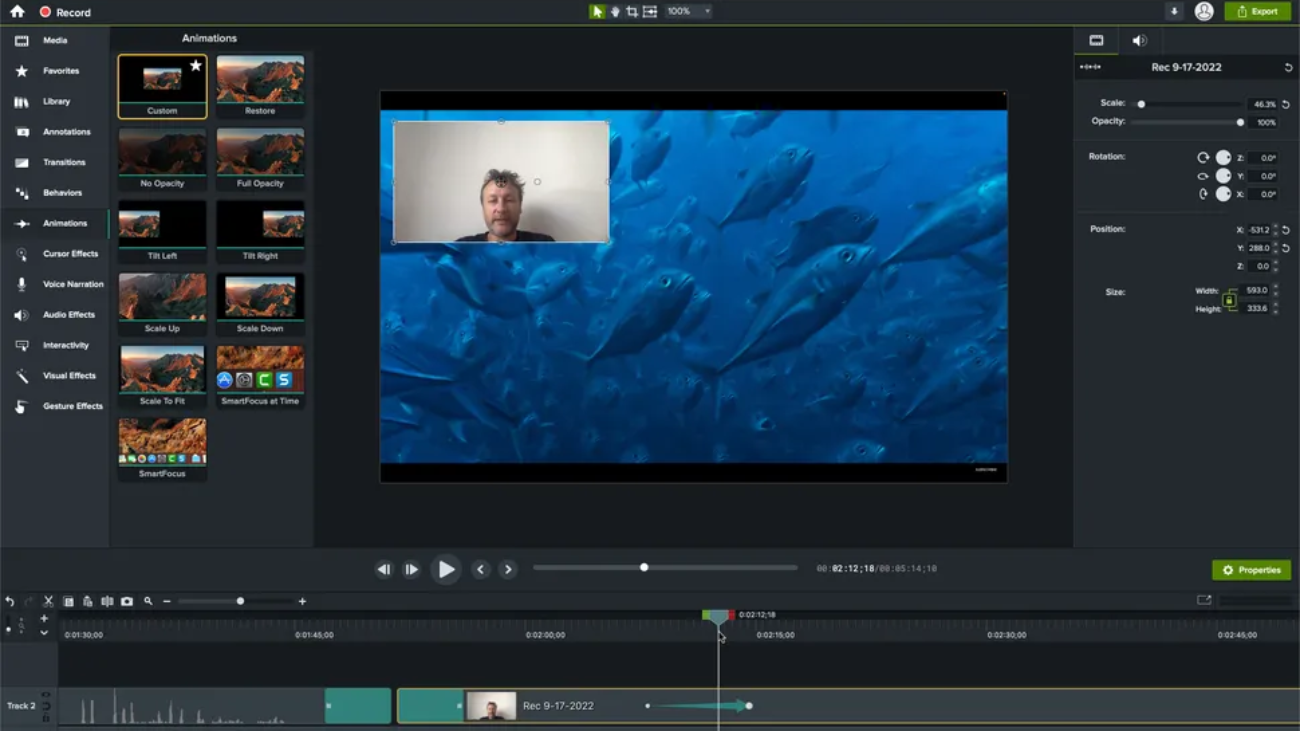
1. Camtasia

Best Overall Screen Recorder

Camtasia is one of the most complete screen recording solutions because it combines recording and professional video editing inside one application.

It is widely used for:

  • Online courses
  • Software tutorials
  • Product demonstrations
  • Training videos
  • YouTube content

Unlike simple capture tools, Camtasia allows users to record, edit, enhance, and publish videos from one place.

Key Features

  • Full screen recording
  • Webcam recording
  • Multi-track editing
  • Cursor effects
  • Video templates
  • Transitions
  • Captions
  • Audio editing

Pros

✔ Beginner-friendly interface
✔ Powerful editing tools
✔ Great for professional tutorials
✔ Windows and Mac support

Cons

✘ Premium pricing compared with free tools

Best For

  • Educators
  • YouTubers
  • Businesses
  • Course creators

2. OBS Studio

Best Free Screen Recorder

OBS Studio is one of the most powerful free screen recorders available.

Originally created for streaming, OBS is now widely used by gamers, creators, and professionals who need advanced recording control.

Features

  • Unlimited recording
  • No watermark
  • Multiple scenes
  • Audio mixer
  • Webcam support
  • Streaming integration
  • Custom layouts

OBS supports:

  • Windows
  • macOS
  • Linux

Pros

✔ Completely free
✔ Open-source
✔ Professional controls
✔ Excellent for gaming

Cons

✘ Learning curve for beginners
✘ No built-in advanced editor

Best For

  • Gamers
  • Streamers
  • Technical users

3. ScreenFlow

Best Screen Recorder for Mac Users

ScreenFlow is designed specifically for macOS users who need high-quality screen capture combined with editing tools.

It is popular among:

  • Teachers
  • App developers
  • Online creators
  • Businesses

Features

  • Screen capture
  • Webcam recording
  • Multi-track editing
  • Animations
  • Video effects
  • Audio controls

ScreenFlow offers a balance between professional features and an approachable workflow.

Best For

  • Mac creators
  • Tutorial videos
  • Product demos

4. TechSmith Snagit

Best for Quick Tutorials and Work Communication

Snagit focuses on fast communication rather than complex video production.

It is designed for people who frequently create:

  • Instructions
  • Guides
  • Presentations
  • Feedback videos
  • Documentation

Features

  • Screen recording
  • Screenshot capture
  • Annotations
  • Image editing
  • Simple video trimming
  • Sharing tools

Snagit is especially useful for workplace productivity and documentation.

5. Loom

Best Screen Recorder for Remote Teams

Loom changed screen recording by making it faster and more collaborative.

Instead of creating large video files, users can record and instantly share a link.

Common Uses

  • Team updates
  • Client communication
  • Product feedback
  • Training videos

Features

  • Browser recording
  • Desktop recording
  • Webcam overlay
  • Cloud sharing
  • Viewer analytics
  • Comments

Loom is ideal for replacing unnecessary meetings with short videos.

6. EaseUS RecExperts

Best for Small Businesses

EaseUS RecExperts provides a simple recording experience with useful professional features.

It supports:

  • Full-screen recording
  • Selected-area capture
  • Webcam recording
  • Audio capture
  • Gameplay recording

Its simple interface makes it attractive for users who want good results without complicated settings.

7. ScreenPal

Best Budget-Friendly Screen Recorder

ScreenPal (previously Screencast-O-Matic) is designed for beginners and educators.

Features include:

  • Screen recording
  • Webcam capture
  • Editing tools
  • Captions
  • Sharing options

It offers a good balance between affordability and functionality.

8. ShareX

Best Free Windows Screen Capture Tool

ShareX is an open-source screen recording and screenshot application.

It includes:

  • Screen recording
  • GIF creation
  • Screenshot tools
  • Automation options
  • Upload workflows

It is especially useful for advanced Windows users who like customization.

Screen Recorder Comparison

SoftwareBest ForFree VersionPlatform
CamtasiaProfessional videosTrialWindows, Mac
OBS StudioGaming & streamingYesWindows, Mac, Linux
ScreenFlowMac creatorsTrialMac
SnagitTutorialsTrialWindows, Mac
LoomTeam communicationYesWeb/Desktop
EaseUS RecExpertsBusiness usersLimitedWindows, Mac
ScreenPalBeginnersYesMultiple
ShareXPower usersYesWindows

Best Free Screen Recorder

For users who do not want to pay, the strongest choices are:

OBS Studio

Best for:

  • Streaming
  • Gaming
  • Professional recording

ShareX

Best for:

  • Screenshots
  • Quick captures
  • Advanced workflows

ScreenPal

Best for:

  • Beginners
  • Teachers
  • Simple videos

Best Screen Recorder for YouTube

Recommended tools:

Beginners

  • Camtasia
  • ScreenPal
  • Loom

Advanced Creators

  • OBS Studio
  • ScreenFlow

Creators making tutorials usually benefit from editing features, while streamers often prefer OBS because of its customization.

Best Screen Recorder for Gaming

OBS Studio remains the strongest free option for gaming because it supports:

  • High-quality capture
  • Scene switching
  • Streaming platforms
  • Advanced audio controls

Gamers who want a simpler experience may also consider dedicated gaming recorders.

How AI Is Changing Screen Recording Software

AI is making screen recording faster and easier.

Modern tools increasingly include:

  • Automatic captions
  • Noise removal
  • Video summaries
  • Smart editing
  • Background cleanup
  • AI-generated descriptions

These features reduce editing time and help creators produce polished videos faster.

Free vs Paid Screen Recorders

Free Software Advantages

  • No cost
  • Good recording quality
  • Suitable for beginners
  • Great learning option

Limitations

  • Fewer editing tools
  • Limited support
  • More manual setup

Paid Software Advantages

  • Professional editing
  • Templates
  • Customer support
  • AI features
  • Faster workflows

Professional creators usually benefit from premium tools, while casual users can often work with free software.

Tips for Better Screen Recordings

To improve video quality:

  • Record in a quiet room
  • Use an external microphone
  • Close unnecessary applications
  • Prepare your content first
  • Use proper resolution settings
  • Remove background distractions
  • Test audio before recording

Small improvements can make recordings look much more professional.

Future of Screen Recording Tools

Screen recorders are becoming complete video production platforms.

Future improvements will likely focus on:

  • AI editing assistants
  • Automatic video creation
  • Real-time translation
  • Cloud collaboration
  • Faster rendering
  • Smarter workflows

As online education, remote work, and digital content continue growing, screen recording will remain an essential productivity tool.

Final Verdict

The best screen recorder depends on your purpose.

Camtasia is the best overall option for users who want recording and professional editing together. OBS Studio remains the top free choice for gamers, streamers, and advanced users. Mac users may prefer ScreenFlow, while teams looking for quick communication should consider Loom or Snagit.

Whether you’re creating YouTube tutorials, recording meetings, teaching online, or building training content, today’s screen recording software offers powerful tools for every type of user.

Frequently Asked Questions

What is the best screen recorder?

Camtasia is one of the best overall screen recorders because it combines easy recording with powerful editing tools, while OBS Studio is the strongest free option.

What is the best free screen recorder?

OBS Studio is considered one of the best free options because it offers unlimited recording, streaming support, and professional customization without watermarks.

Which screen recorder is best for gaming?

OBS Studio is a top choice for gamers because it supports high-quality recording, live streaming, scenes, and advanced audio controls.

Can screen recorders capture webcam and audio?

Yes. Most modern screen recorders support webcam, microphone, and system audio recording.

Are free screen recorders safe?

Trusted tools like OBS Studio, ShareX, and ScreenPal are safe when downloaded from their official websites. Avoid unknown applications that bundle unwanted software.

Google Password Manager

Google Password Manager: Features, Security, Pros, Cons & Should You Use It?

Remembering dozens of passwords has become almost impossible. Between email accounts, banking apps, streaming services, shopping websites, and work platforms, most users manage more logins than ever before.

Password managers solve this problem by storing credentials securely, generating strong passwords, and automatically filling login details when needed.

One of the most widely available options is Google Password Manager. Built directly into Chrome and Android, it provides a simple way to save passwords without installing extra software.

But convenience and security are not always the same thing.

While Google Password Manager works well for everyday users, privacy-focused users and businesses may find dedicated password managers offer stronger controls and more advanced protection.

This review explains how Google Password Manager works, its security features, advantages, limitations, and whether you should rely on it in 2026.

What Is Google Password Manager?

Google Password Manager is a built-in password management tool from Google that helps users save, create, manage, and autofill passwords across websites and applications.

It is integrated into:

  • Google Chrome
  • Android devices
  • Google Accounts

Instead of remembering every login manually, users can store passwords inside their Google Account and automatically access them when signing into websites or apps.

Google Password Manager can:

  • Save usernames and passwords
  • Create strong passwords
  • Autofill login details
  • Check password security
  • Alert users about compromised passwords
  • Store passkeys

Its biggest advantage is simplicity. Millions of people already use Chrome or Android, meaning password management is available without installing another app.

How Does Google Password Manager Work?

When you create or enter a password on a website, Chrome can ask whether you want to save it.

Once saved, your login information syncs with your Google Account.

The next time you visit that website:

  1. Chrome recognizes the login page.
  2. Google Password Manager suggests your saved credentials.
  3. You verify access if required.
  4. The password automatically fills in.

The same system works across supported Android apps.

Google Password Manager Features

1. Password Storage and Autofill

The main feature is automatic password storage.

Instead of typing passwords manually, Google Password Manager remembers them and fills them when needed.

This helps users avoid:

  • Weak passwords
  • Reused passwords
  • Forgotten logins

For casual users, this is the biggest benefit.

2. Password Generator

Creating unique passwords manually is difficult.

Google Password Manager can automatically suggest strong passwords when creating new accounts.

Generated passwords usually include:

  • Random characters
  • Numbers
  • Symbols
  • Longer combinations

Strong unique passwords reduce the damage caused by data breaches because one leaked password cannot unlock multiple accounts.

3. Password Checkup

Google includes a security check feature that reviews saved passwords.

It can identify:

  • Compromised passwords
  • Weak passwords
  • Reused passwords

Users receive recommendations for improving account security.

4. Passkey Support

Google Password Manager supports modern passwordless authentication using passkeys.

Passkeys allow users to sign in using:

  • Fingerprint recognition
  • Face unlock
  • Device PIN

Instead of storing a traditional password, passkeys use cryptographic technology designed to reduce risks from phishing and password leaks.

5. Cross-Device Sync

Because passwords are connected to a Google Account, users can access them across:

  • Smartphones
  • Tablets
  • Laptops
  • Desktop computers

This works especially well for people who mainly use Chrome and Android.

Is Google Password Manager Safe?

For most everyday users, Google Password Manager provides a reasonable level of security.

Security features include:

  • Encryption
  • Device authentication
  • Security alerts
  • Passkey support
  • Two-factor authentication support

Google also provides additional protection options such as on-device encryption, which adds another security layer for saved credentials.

However, like every security tool, it has limitations.

Why Some Users Avoid Google Password Manager

Although convenient, there are reasons some security-focused users prefer alternatives.

1. Heavy Dependence on Google Account

Your password vault is connected to your Google ecosystem.

If someone gains access to your Google Account and security settings are weak, many saved passwords could be at risk.

Strong protection requires:

  • Two-factor authentication
  • Secure recovery settings
  • Strong Google password

2. Limited Advanced Features

Compared with dedicated password managers, Google’s tool lacks some professional features.

Advanced password managers may provide:

  • Secure document storage
  • Emergency access
  • Advanced sharing controls
  • Business management tools
  • Detailed security reports

3. Mostly Designed Around Chrome

Google Password Manager works best inside Google’s ecosystem.

Users who regularly switch between:

  • Safari
  • Firefox
  • Different operating systems

may prefer independent password managers.

Google Password Manager Pros and Cons

Pros

✔ Completely free
✔ Built into Chrome and Android
✔ Easy for beginners
✔ Password generator included
✔ Security alerts
✔ Supports passkeys
✔ Automatic syncing

Cons

✘ Limited professional features
✘ Works best inside Google ecosystem
✘ Less flexible than dedicated password managers
✘ Limited business management options

Google Password Manager Alternatives

Users needing more advanced features can consider dedicated services.

Popular alternatives include:

1Password

Best for:

  • Families
  • Professionals
  • Teams

Features include advanced sharing, travel mode, and strong organization tools.

Bitwarden

Best for:

  • Open-source users
  • Free password management

It provides strong security features and broad platform support.

Dashlane

Best for:

  • Extra privacy features

Includes password management, security monitoring, and additional privacy tools.

NordPass

Best for:

  • Simple premium experience

Designed around modern security and ease of use.

Google Password Manager vs Dedicated Password Managers

FeatureGoogle Password ManagerDedicated Password Manager
Free AccessYesSometimes
Password SavingYesYes
AutofillYesYes
PasskeysYesYes
Secure SharingLimitedAdvanced
Business FeaturesLimitedStrong
Cross Browser SupportLimitedBetter
Advanced ControlsBasicMore Complete

Who Should Use Google Password Manager?

Google Password Manager is a good choice for:

  • Casual internet users
  • Android users
  • Chrome users
  • People wanting a free solution
  • Users new to password managers

It provides a major improvement over remembering passwords manually or reusing the same password everywhere.

Who Should Consider Alternatives?

A dedicated password manager may be better for:

  • Business users
  • Security professionals
  • Families sharing accounts
  • Users outside Google’s ecosystem
  • People storing highly sensitive credentials

Tips to Use Google Password Manager Safely

To improve protection:

  • Enable two-factor authentication
  • Use a strong Google Account password
  • Turn on security alerts
  • Avoid sharing your main account
  • Keep Chrome updated
  • Remove old saved passwords
  • Use passkeys when available

Future of Password Managers

The future of account security is moving beyond traditional passwords.

Passkeys are becoming more common because they reduce many problems associated with passwords, including:

  • Reuse
  • Phishing
  • Weak passwords

Google, Apple, Microsoft, and other major technology companies continue investing heavily in passwordless authentication.

Password managers are evolving from simple storage tools into complete identity protection systems.

Final Verdict: Should You Use Google Password Manager?

Google Password Manager is a convenient, free, and beginner-friendly way to improve online security.

For everyday users who mainly use Chrome and Android, it offers useful features such as password generation, autofill, security alerts, and passkey support.

However, users who need advanced privacy controls, secure sharing, business tools, or independence from one ecosystem may prefer dedicated password managers like 1Password, Bitwarden, or Dashlane.

The most important step is using a password manager of some kind. Strong, unique passwords combined with multi-factor authentication remain one of the easiest ways to protect your online accounts.

Frequently Asked Questions

What is Google Password Manager?

Google Password Manager is a tool built into Chrome and Android that saves passwords, creates strong passwords, autofills login information, and manages passkeys.

Is Google Password Manager free?

Yes. Google Password Manager is free and included with Google Accounts.

Is Google Password Manager safe?

For most users, yes. It uses security features such as encryption, alerts, device protection, and passkey support.

Can Google Password Manager create strong passwords?

Yes. It can automatically generate strong unique passwords when creating online accounts.

Is Google Password Manager better than dedicated password managers?

It depends on your needs. Google Password Manager is easier and free, while dedicated password managers usually provide more advanced security, sharing, and professional features.

Best free video editing software

Best Free Video Editing Software in 2026: Professional Editing Without Paying for Expensive Tools

Creating professional-looking videos no longer requires expensive editing suites or a Hollywood-level setup. Whether you’re making YouTube videos, social media clips, online courses, business presentations, or short films, today’s free video editing software provides powerful tools that were once only available in premium applications.

Modern free editors now include advanced features such as 4K editing, color correction, motion graphics, AI-powered tools, audio enhancement, and multi-track timelines. Some are designed for complete beginners, while others offer professional workflows used by filmmakers and content creators.

Choosing the right editor depends on your experience level, computer performance, and the type of content you create.

This guide compares the best free video editing software in 2026 and explains which tool is right for different creators.

What Is Free Video Editing Software?

Free video editing software allows users to edit, arrange, enhance, and export videos without purchasing a paid license.

Most modern editors support:

  • Cutting and trimming clips
  • Adding transitions
  • Color adjustments
  • Audio editing
  • Text and titles
  • Effects
  • Exporting videos
  • Social media formatting

Advanced tools may also include:

  • Motion graphics
  • AI editing
  • Green screen effects
  • Professional color grading
  • Multi-camera editing

What Makes a Good Free Video Editor?

Before installing any software, consider these factors:

Ease of Use

Beginners usually need:

  • Simple timeline controls
  • Drag-and-drop editing
  • Templates
  • Quick exports

Professional editors may prefer deeper customization.

Export Quality

A strong free editor should support:

  • Full HD exports
  • 4K video support
  • Multiple file formats
  • High-quality rendering

No Watermarks

Some free editors add watermarks unless you upgrade. The best free options allow clean exports.

Platform Compatibility

Check support for:

  • Windows
  • macOS
  • Linux
  • iOS
  • Android
  • Browser editing

Best Free Video Editing Software in 2026

1. DaVinci Resolve

Best Overall Free Video Editing Software

DaVinci Resolve is widely considered one of the most powerful free video editors available. It combines professional editing, visual effects, color correction, and audio production inside one application.

Originally known for Hollywood-level color grading, Resolve has grown into a complete post-production platform.

Key Features

  • Professional timeline editing
  • Advanced color grading
  • Visual effects through Fusion
  • Fairlight audio tools
  • Motion graphics
  • Multi-camera editing
  • High-quality exports
  • AI-assisted features

The free version is powerful enough for many filmmakers, YouTubers, and professional creators.

Best For

  • YouTube creators
  • Filmmakers
  • Advanced editors
  • Professional projects

Pros

✔ Professional-grade tools
✔ No watermark
✔ Advanced color correction
✔ Windows, Mac, and Linux support

Cons

✘ Requires a powerful computer
✘ Learning curve for beginners

2. CapCut

Best Free Editor for Social Media Creators

CapCut has become extremely popular among creators because it combines simplicity with powerful editing features.

Originally known as a mobile editor, CapCut now supports desktop and web versions.

Features Include

  • Timeline editing
  • Templates
  • Auto captions
  • Effects
  • Filters
  • AI tools
  • Background removal
  • Social media exports

It is especially popular among:

  • TikTok creators
  • Instagram creators
  • YouTubers

Pros

✔ Beginner-friendly
✔ Strong AI features
✔ Works across devices
✔ Fast social media editing

Cons

✘ Some advanced tools require Pro subscription

3. Microsoft Clipchamp

Best Free Video Editor for Beginners

Clipchamp focuses on making video editing simple.

Owned by Microsoft, it is available through browsers and Windows integration.

It is ideal for users who want quick results without learning complex software.

Features

  • Drag-and-drop editor
  • Templates
  • Screen recording
  • Webcam recording
  • Text-to-speech tools
  • Stock media library
  • Social media templates

Clipchamp’s free version supports useful features including 1080p exports.

Best For

  • Students
  • Small businesses
  • Simple projects

4. Shotcut

Best Open-Source Video Editor

Shotcut is a free, open-source video editor designed for users who want flexibility without subscriptions.

It supports:

  • Multiple video formats
  • Timeline editing
  • Filters
  • Audio tools
  • Color correction

Because it is open-source, users get full access without premium restrictions.

Pros

✔ Completely free
✔ No watermark
✔ Lightweight
✔ Regular updates

Cons

✘ Interface feels less modern

5. OpenShot

Best Simple Open-Source Editor

OpenShot is designed for beginners who need basic editing without complicated menus.

Features include:

  • Video trimming
  • Animations
  • Titles
  • Transitions
  • Audio editing
  • Unlimited tracks

It works well for:

  • School projects
  • Basic YouTube videos
  • Family videos
  • Quick edits

6. Apple iMovie

Best Free Video Editor for Mac Users

iMovie comes free with Apple devices and remains one of the easiest video editors available.

It offers:

  • Simple timeline editing
  • Movie templates
  • Transitions
  • Color adjustments
  • Audio editing
  • 4K support

For beginners using Mac, iPhone, or iPad, iMovie is often enough.

7. Lightworks

Best for Users Learning Professional Editing

Lightworks has been used in professional video production environments and offers a powerful free version.

Features include:

  • Professional timeline
  • Effects
  • Audio tools
  • Export options
  • Advanced workflows

It is better suited for users willing to learn professional editing concepts.

Best Free Video Editing Software Comparison

SoftwareBest ForPlatformSkill Level
DaVinci ResolveProfessionalsWindows/Mac/LinuxAdvanced
CapCutSocial mediaDesktop/Mobile/WebBeginner
ClipchampQuick editsWindows/WebBeginner
ShotcutOpen-source usersWindows/Mac/LinuxIntermediate
OpenShotSimple editingWindows/Mac/LinuxBeginner
iMovieApple usersMac/iOSBeginner
LightworksFilm editingWindows/Mac/LinuxAdvanced

Best Free Video Editor for YouTube

For YouTube creators:

Beginners

Recommended:

  • CapCut
  • Clipchamp
  • iMovie

They provide fast editing, templates, and simple workflows.

Advanced Creators

Recommended:

  • DaVinci Resolve
  • Lightworks

These provide professional controls for long-form content.

Best Free Video Editor Without Watermark

Some of the best no-watermark options include:

  • DaVinci Resolve
  • Shotcut
  • OpenShot
  • iMovie

These allow creators to export clean videos without forced branding.

How AI Is Changing Video Editing Software

AI is becoming a major part of modern video creation.

New editing tools can help with:

  • Automatic captions
  • Background removal
  • Audio cleanup
  • Scene detection
  • Smart trimming
  • Video enhancement
  • Text-based editing

Instead of replacing editors, AI helps reduce repetitive work so creators can focus more on storytelling.

Free vs Paid Video Editing Software

Free Editors

Advantages:

  • No cost
  • Great for learning
  • Many professional features
  • Good enough for most creators

Limitations:

  • Some advanced effects locked
  • Limited cloud features
  • Less premium support

Paid Editors

Better for:

  • Professional studios
  • Large productions
  • Team workflows
  • Advanced effects

However, many creators can produce high-quality videos using only free software.

How to Choose the Right Video Editor

Choose based on your needs:

For beginners:
CapCut, Clipchamp, iMovie

For YouTube:
DaVinci Resolve, CapCut

For filmmaking:
DaVinci Resolve

For older computers:
Shotcut, OpenShot

For social media:
CapCut

Future of Free Video Editing Software

Free editing tools are becoming more powerful every year.

Future improvements will likely include:

  • More AI automation
  • Faster rendering
  • Cloud collaboration
  • Better mobile editing
  • Smart video generation
  • Real-time effects

Professional-quality editing will continue becoming more accessible to everyday creators.

Final Verdict

The best free video editing software depends on your goals and experience.

For professional-quality projects, DaVinci Resolve is the strongest free option thanks to its editing, color, audio, and visual effects tools. For social media creators, CapCut provides a fast and beginner-friendly workflow. Clipchamp is ideal for simple everyday editing, while Shotcut and OpenShot remain excellent open-source alternatives.

Whether you’re starting a YouTube channel, creating business videos, or learning filmmaking, today’s free editors provide more than enough power to create impressive content without paying for expensive software.

Frequently Asked Questions

What is the best free video editing software?

DaVinci Resolve is considered one of the best free video editors because it provides professional editing, color correction, visual effects, and audio tools.

Which free video editor is best for beginners?

CapCut, Clipchamp, and iMovie are excellent beginner-friendly options because they offer simple interfaces and quick editing tools.

Can free video editing software edit 4K videos?

Yes. Many free editors, including DaVinci Resolve and CapCut, support 4K video editing.

Is free video editing software good enough for YouTube?

Yes. Many YouTubers use free editors because they provide professional features without requiring expensive subscriptions.

Which free video editor has no watermark?

DaVinci Resolve, Shotcut, OpenShot, and iMovie allow users to export videos without forced watermarks.

free YouTube to MP3 converter

Best YouTube to MP3 Converters in 2026: Safe, Fast & Free Tools Compared

Whether you’re saving a podcast for your daily commute, downloading a lecture for offline study, or extracting royalty-free audio for a creative project, a YouTube to MP3 converter can be a useful tool. Instead of downloading an entire video, these applications extract only the audio, producing compact files that are easier to store and play on almost any device.

However, not all converters are created equal. Some prioritize audio quality and ease of use, while others are cluttered with ads, bundled software, or questionable security practices. Choosing a reliable converter is just as important as selecting the right output format.

This guide reviews the best YouTube to MP3 converters available in 2026, explains what features matter most, and highlights the legal and security considerations users should understand before converting content.

What Is a YouTube to MP3 Converter?

A YouTube to MP3 converter is software that extracts the audio track from a YouTube video and saves it as an audio file.

Most modern converters support formats such as:

  • MP3
  • M4A
  • OGG
  • AAC
  • WAV

Some applications also support downloading entire playlists, preserving metadata, downloading subtitles, or converting videos from platforms beyond YouTube.

What Should You Look for in a Converter?

The best software typically offers:

  • High-quality audio output
  • Fast conversion speeds
  • Multiple audio formats
  • Batch downloads
  • Playlist support
  • Clean interface
  • No bundled malware
  • Regular updates

A trustworthy application should also avoid intrusive advertising and unnecessary browser extensions.

Best YouTube to MP3 Converters in 2026

1. Any Video Converter Free

Best Overall

Despite its name, Any Video Converter Free is much more than a video conversion tool.

It can:

  • Download YouTube videos
  • Extract MP3 audio
  • Convert between numerous formats
  • Perform basic editing
  • Support multiple websites

Pros

  • Easy to use
  • Excellent format support
  • Fast conversion
  • Additional editing tools

Cons

  • Installer may offer optional bundled software, so pay attention during setup.

Its balance of flexibility and ease of use makes it one of the strongest all-around choices.

2. 4K YouTube to MP3

Best for Simplicity

4K YouTube to MP3 focuses exclusively on audio extraction.

Key features include:

  • MP3, M4A, and OGG output
  • Support for multiple websites
  • High bitrate options
  • Clean interface
  • No bundled software

The premium version adds playlist downloads, while the free edition remains suitable for everyday use.

3. 4K Video Downloader

Although primarily designed for downloading videos, 4K Video Downloader also supports audio extraction.

Highlights include:

  • 4K and 8K video downloads
  • MP3 conversion
  • Playlist support
  • Subtitle downloads
  • Windows, macOS, and Linux compatibility

For users who occasionally need full videos as well as MP3 files, it offers greater flexibility than audio-only applications.

4. Free YouTube to MP3 Converter

Designed with simplicity in mind, this application provides a straightforward experience.

Features include:

  • Queue multiple downloads
  • Automatic conversion
  • Clean interface
  • Fast processing

It is particularly suitable for users who only need basic audio extraction without advanced editing tools.

5. YTD Video Downloader

YTD Video Downloader has been available for many years and remains a popular option.

It supports:

  • Video downloads
  • MP3 extraction
  • Multiple output formats
  • Basic conversion settings

While its free version has some limitations, it remains a dependable choice for occasional users.

Desktop Software vs Online Converters

FeatureDesktop SoftwareOnline Converter
Audio QualityExcellentVaries
Batch DownloadsYesRare
Playlist SupportYesLimited
SecurityGenerally saferDepends on the website
SpeedFasterInternet-dependent
AdsUsually minimalOften excessive

Desktop applications generally provide a more reliable experience, especially for users who convert files frequently.

Understanding Audio Quality

The quality of an MP3 file depends on its bitrate.

BitrateTypical Use
128 kbpsPodcasts and voice recordings
192 kbpsGeneral listening
256 kbpsHigh-quality audio
320 kbpsBest available MP3 quality

Keep in mind that converting a low-quality source into a higher bitrate does not improve its original audio quality.

Is It Legal to Convert YouTube Videos to MP3?

This is one of the most common questions—and one of the most misunderstood.

YouTube’s Terms of Service generally prohibit downloading videos through unauthorized third-party tools unless a download option is explicitly provided or you have permission from the copyright holder. Copyright laws also vary by country.

You should only convert content when:

  • You own the video.
  • The creator has granted permission.
  • The content is in the public domain.
  • The content is licensed for downloading and reuse.

If you’re simply looking for offline playback, YouTube Premium provides an official download feature for supported content.

Security Tips Before Installing Any Converter

Not every converter is trustworthy.

Before installing software:

  • Download it only from the official developer’s website.
  • Read recent user reviews.
  • Avoid cracked or modified versions.
  • Decline optional bundled software during installation.
  • Scan downloads with antivirus software.
  • Keep the application updated.

If a converter asks you to install unnecessary browser extensions or redirects you through multiple advertising pages, consider using a different tool.

Common Use Cases

A YouTube to MP3 converter can be useful for:

Students

Save lectures and educational content for offline listening.

Podcast Listeners

Extract spoken-word content for easier playback.

Musicians

Download royalty-free backing tracks with permission.

Content Creators

Archive licensed audio for editing and production.

Travelers

Listen to educational or informational content without an internet connection.

AI Is Changing Audio Conversion Software

Artificial intelligence is beginning to influence media conversion tools.

Some modern applications now include:

  • Automatic speech transcription
  • Audio enhancement
  • Noise reduction
  • Smart metadata tagging
  • Chapter detection
  • AI-generated summaries

Rather than replacing traditional converters, AI is adding features that improve organization and accessibility.

Pros and Cons

Pros

  • Offline listening
  • Smaller file sizes
  • Broad device compatibility
  • Multiple audio formats
  • Playlist support in many desktop applications
  • Useful for educational and personal projects

Cons

  • Copyright restrictions apply.
  • Some installers bundle optional software.
  • Online converters may contain excessive advertisements.
  • Audio quality depends on the original source.

Choosing the Right Converter

For most users:

  • Any Video Converter Free is the best all-around solution.
  • 4K YouTube to MP3 is ideal if you only need audio extraction.
  • 4K Video Downloader works well if you also download videos.
  • Free YouTube to MP3 Converter is a good choice for beginners.

The right option depends on whether you prioritize speed, playlist support, advanced features, or a simple interface.

Final Verdict

The best YouTube to MP3 converter is one that combines reliable performance, high-quality audio output, and strong security practices. Desktop applications remain the preferred choice for regular users because they generally offer better stability, faster processing, and fewer security risks than browser-based converters.

Among the available options, Any Video Converter Free stands out for its versatility, while 4K YouTube to MP3 excels as a dedicated audio extraction tool. Regardless of which application you choose, always respect copyright laws, use official software sources, and ensure you have permission before downloading or converting copyrighted content.

Frequently Asked Questions

What is the best YouTube to MP3 converter?

Any Video Converter Free is widely regarded as one of the best options because it combines fast downloads, multiple output formats, and a user-friendly interface.

Are YouTube to MP3 converters free?

Many desktop applications offer free versions with core conversion features, while premium editions typically unlock playlist downloads, batch processing, or additional formats.

Is it legal to convert YouTube videos into MP3 files?

It depends on the content and your intended use. You should only convert videos when you own them, have permission from the copyright holder, or the content is otherwise authorized for downloading. Unauthorized downloads may violate YouTube’s Terms of Service.

Which format offers the best audio quality?

MP3 at 320 kbps is generally considered the highest-quality MP3 option, though the final quality still depends on the original audio source.

Are online YouTube to MP3 converters safe?

Some are legitimate, but many contain intrusive ads, misleading download buttons, or potential security risks. Established desktop applications downloaded from official developer websites are generally the safer choice.

Find My iPhone

How to Use Find My iPhone: Track, Lock, and Protect Your Lost iPhone

Misplacing your iPhone can be stressful, but Apple’s Find My feature is designed to make recovery much easier. Whether your phone slipped between couch cushions, was left at a café, or was stolen while traveling, Find My gives you several tools to locate and protect your device remotely.

Over the years, Apple has expanded Find My far beyond simple GPS tracking. Today, it can help you locate devices that are offline, play a sound to pinpoint a nearby iPhone, activate Lost Mode, remotely erase personal data, and even help locate AirPods, Apple Watch, Macs, and AirTags using the same ecosystem.

This guide explains how to set up and use Find My iPhone, what each feature does, and how to maximize your chances of recovering a lost Apple device.

What Is Find My iPhone?

Find My iPhone is part of Apple’s Find My app, which combines device tracking, location sharing, and item finding into a single service.

Once enabled, Find My allows you to:

  • Locate your iPhone on a map
  • Play a sound to help find it nearby
  • Lock the device using Lost Mode
  • Display a custom contact message
  • Suspend Apple Pay cards
  • Erase your iPhone remotely if necessary
  • Locate other Apple devices linked to your Apple Account

Before You Can Use Find My

Find My must be enabled before your device goes missing.

To verify it’s turned on:

  1. Open Settings.
  2. Tap your Apple Account name.
  3. Select Find My.
  4. Tap Find My iPhone.
  5. Enable:
    • Find My iPhone
    • Find My network
    • Send Last Location

These settings improve your chances of recovering a lost device, even if its battery is low or it isn’t connected to Wi-Fi.

How to Find a Lost iPhone

If your iPhone goes missing, there are two easy ways to locate it.

Option 1: Use Another Apple Device

Open the Find My app on:

  • iPhone
  • iPad
  • Mac

Choose the Devices tab and select your missing iPhone.

You’ll see:

  • Current location
  • Battery level (when available)
  • Directions in Maps
  • Available actions such as Play Sound or Lost Mode

Option 2: Use iCloud

If you don’t have another Apple device:

  1. Visit iCloud Find Devices in a web browser.
  2. Sign in using your Apple Account.
  3. Select your missing iPhone.
  4. View its location or perform remote actions.

What Does “Play Sound” Do?

If your iPhone is nearby—but you can’t see it—tap Play Sound.

Your device will emit a loud alert, making it much easier to locate under furniture, inside a backpack, or in another room.

This feature works even if the phone is set to silent mode.

How Lost Mode Works

If your iPhone isn’t nearby, the next step is enabling Lost Mode.

Lost Mode:

  • Locks your iPhone immediately.
  • Requires your passcode to unlock.
  • Suspends Apple Pay cards.
  • Displays a custom message on the Lock Screen.
  • Allows someone who finds the device to contact you.

A typical message might read:

“This iPhone has been lost. Please call +1-555-123-4567.”

Can Find My Locate an Offline iPhone?

Yes.

Modern iPhones support the Find My network, allowing nearby Apple devices to anonymously detect and relay the approximate location of a lost iPhone—even if it isn’t connected to Wi-Fi or cellular service. This encrypted system significantly improves the chances of locating a missing device.

What Is Send Last Location?

When enabled, Send Last Location automatically uploads your iPhone’s last known location to Apple before the battery is completely depleted.

If your device powers off due to a low battery, you’ll still be able to see where it was last detected.

How to Erase Your iPhone Remotely

If you believe your device won’t be recovered—or it contains highly sensitive information—you can erase it remotely.

Steps:

  1. Open Find My.
  2. Select your missing device.
  3. Choose Erase This Device.
  4. Confirm your decision.

This removes your personal data, including photos, messages, apps, and stored information.

Important: Once erased, you won’t be able to continue tracking the device unless it’s still associated with your Apple Account through Activation Lock.

Can Find My Locate Other Apple Devices?

Absolutely.

The same app works with:

  • iPad
  • Mac
  • Apple Watch
  • AirPods
  • AirTag
  • Compatible third-party accessories

Everything appears within the same Find My interface.

Share Your Location with Family and Friends

Find My isn’t only for lost devices.

You can also share your live location with trusted contacts.

Common uses include:

  • Meeting friends
  • Family safety
  • Travel coordination
  • Helping relatives locate your device

You remain in control and can stop sharing your location at any time.

Tips to Improve Recovery Chances

If you rely on Find My, follow these best practices:

  • Keep Find My enabled at all times.
  • Turn on Find My network.
  • Enable Send Last Location.
  • Use Face ID or a strong passcode.
  • Keep your iPhone updated.
  • Add trusted emergency contacts.
  • Regularly back up your data to iCloud.

These simple steps can make a significant difference if your device is ever lost.

Common Mistakes to Avoid

Many users accidentally reduce the effectiveness of Find My by:

  • Turning it off after setup.
  • Disabling Location Services.
  • Forgetting their Apple Account password.
  • Ignoring software updates.
  • Not enabling Send Last Location.

Checking these settings periodically ensures your iPhone remains protected.

Security Warning: Beware of Fake “Find My” Messages

If your iPhone is lost or stolen, scammers may send text messages or emails claiming your device has been found.

These messages often contain fake links designed to steal your Apple Account credentials.

Remember:

  • Apple does not ask you to sign in through random SMS links.
  • Access Find My only through the official Find My app or iCloud.
  • Never enter your Apple Account password on an unfamiliar website.

The Future of Find My

Apple continues to improve Find My with each major iOS release. Recent updates have strengthened offline tracking, privacy protections, and device recovery features while expanding support for AirTags and compatible accessories.

Looking ahead, we can expect more precise location tracking, deeper integration across the Apple ecosystem, and additional security measures to help users recover lost devices while protecting personal data.

Final Verdict

Find My is one of the most valuable built-in security features available on an iPhone. It goes far beyond locating a misplaced device by offering remote locking, secure location tracking, offline detection through Apple’s Find My network, and the ability to erase sensitive information if recovery isn’t possible.

The key is preparation. Enable Find My, Find My network, and Send Last Location before you ever need them. Those few minutes of setup can make the difference between quickly recovering a misplaced iPhone and permanently losing access to your device and data.

Frequently Asked Questions

Can Find My locate an iPhone that is turned off?

Yes. Supported iPhone models can be located after they’re powered off using Apple’s Find My network, provided the feature was enabled beforehand.

Does Find My work without an internet connection?

Yes. Nearby Apple devices can securely relay the approximate location of your iPhone through the Find My network, even when your device is offline.

Can I use Find My from a web browser?

Yes. You can sign in to Apple’s iCloud Find Devices page using your Apple Account to locate, lock, or erase your iPhone remotely.

What happens when I enable Lost Mode?

Lost Mode locks your iPhone, suspends Apple Pay, displays your contact information on the Lock Screen, and helps protect your personal data while you search for the device.

Should I erase my iPhone immediately if it’s stolen?

Not necessarily. It’s generally best to activate Lost Mode first and continue monitoring its location. If recovery appears unlikely or your sensitive information is at risk, you can remotely erase the device through Find My.

Best managed web hosting

Best Managed Web Hosting in 2026: Top Providers Compared for Performance, Security & Support

Running a website today involves much more than publishing content. Server maintenance, software updates, security patches, backups, caching, and performance optimization all demand ongoing attention. For businesses, agencies, and growing online stores, these technical responsibilities can quickly become a distraction from what matters most—building products, serving customers, and growing revenue.

That’s where managed web hosting comes in.

Unlike traditional hosting, managed hosting providers take care of the technical aspects of running your server, allowing you to focus on your website instead of infrastructure. Whether you’re launching a business website, managing multiple WordPress installations, or operating an eCommerce store, choosing the right managed hosting provider can significantly improve speed, security, and reliability.

This guide compares the best managed web hosting providers in 2026, explains how managed hosting works, and helps you decide which solution best fits your needs.

What Is Managed Web Hosting?

Managed web hosting is a hosting service where the provider handles server administration and maintenance on your behalf.

Instead of managing operating system updates, security patches, backups, monitoring, and server optimization yourself, the hosting company takes responsibility for these tasks.

Typical managed hosting services include:

  • Server management
  • Security monitoring
  • Automatic updates
  • Daily backups
  • Malware protection
  • Performance optimization
  • Technical support
  • SSL certificate management
  • Server monitoring

This allows businesses to concentrate on developing websites rather than maintaining infrastructure.

Who Should Use Managed Hosting?

Managed hosting is ideal for:

  • Small businesses
  • Growing startups
  • WordPress websites
  • WooCommerce stores
  • Digital agencies
  • Bloggers with high traffic
  • SaaS companies
  • Developers managing multiple client sites

If you don’t have an in-house system administrator—or simply don’t want to spend time maintaining servers—managed hosting is often worth the additional cost.

What Makes a Great Managed Hosting Provider?

When evaluating hosting providers, consider these factors:

Performance

Fast page loading improves both user experience and search engine rankings.

Security

Look for:

  • Firewalls
  • Malware scanning
  • DDoS protection
  • Automatic security patches
  • Free SSL certificates

Scalability

Your hosting should grow alongside your business without requiring a complete migration.

Support

Responsive technical support is one of the biggest advantages of managed hosting.

Backup & Recovery

Automatic daily backups and one-click restoration reduce downtime and simplify disaster recovery.

Best Managed Web Hosting Providers in 2026

1. ScalaHosting

Best Overall Managed Hosting

ScalaHosting has built a strong reputation by offering managed VPS hosting that combines performance, affordability, and ease of use.

Its proprietary SPanel control panel replaces traditional cPanel while providing a user-friendly interface for managing websites, domains, email accounts, SSL certificates, and PHP versions.

Notable features include:

  • Managed VPS hosting
  • NVMe SSD storage
  • Automatic backups
  • Free SSL
  • SShield security protection
  • 24/7 expert support
  • Easy scalability

ScalaHosting is particularly well suited to businesses that have outgrown shared hosting but don’t want the complexity of self-managed VPS servers.

2. Liquid Web

Best for Customization

Liquid Web targets businesses and developers that need enterprise-grade infrastructure without sacrificing flexibility.

Unlike many managed hosting providers, it offers highly customizable environments, allowing customers to select preferred control panels, operating systems, and server configurations.

Highlights include:

  • Managed VPS
  • Dedicated servers
  • Cloud hosting
  • Full root access (where appropriate)
  • Advanced caching
  • Enterprise support

It’s an excellent choice for agencies and organizations running mission-critical websites.

3. WP Engine

Best Managed WordPress Hosting

WP Engine specializes exclusively in WordPress.

Rather than supporting every type of website, the company optimizes its entire platform around WordPress performance and security.

Key features include:

  • Automatic WordPress updates
  • Daily backups
  • Staging environments
  • CDN integration
  • Advanced caching
  • Developer tools
  • Strong security

For businesses that rely heavily on WordPress, WP Engine remains one of the most trusted premium hosting providers.

4. Cloudways

Best Managed Cloud Hosting

Cloudways offers a unique approach to managed hosting by acting as a management layer for leading cloud infrastructure providers.

Customers can deploy servers on:

  • DigitalOcean
  • AWS
  • Google Cloud
  • Vultr
  • Linode

Cloudways then handles server management, security, backups, and performance optimization.

This model combines cloud flexibility with managed hosting convenience, making it popular among developers and agencies.

5. SiteGround

Best for Small Businesses

SiteGround has consistently ranked among the strongest hosting providers for business websites and WordPress hosting.

Built on Google Cloud infrastructure, it offers:

  • Managed WordPress
  • Automatic updates
  • Built-in caching
  • CDN
  • Free SSL
  • Daily backups
  • Excellent customer support

SiteGround is particularly attractive for businesses that value ease of use and dependable technical assistance.

6. InMotion Hosting

Best for Growing Businesses

InMotion Hosting provides managed hosting solutions that can be customized to specific business requirements.

Standout features include:

  • Launch Assist onboarding
  • Managed VPS
  • Managed dedicated hosting
  • Performance optimization
  • Security monitoring
  • Business-focused support

Its hands-on onboarding makes it especially appealing for organizations migrating from another provider.

7. Namecheap EasyWP

Best Budget Managed WordPress Hosting

Namecheap’s EasyWP platform provides an affordable entry point into managed WordPress hosting.

Benefits include:

  • Simple setup
  • Automatic updates
  • Fast deployment
  • Competitive pricing
  • Beginner-friendly interface

It’s a practical option for bloggers, freelancers, and small websites that don’t yet require enterprise-grade infrastructure.

Managed Hosting vs Shared Hosting

FeatureManaged HostingShared Hosting
Server ManagementProvider handles itCustomer handles most tasks
PerformanceHigherModerate
SecurityAdvancedBasic
BackupsAutomaticOften limited
Technical SupportExpert-levelGeneral support
ScalabilityExcellentLimited
CostHigherLower

Managed hosting typically costs more than shared hosting, but the additional services often justify the investment for business-critical websites.

Benefits of Managed Web Hosting

Better Performance

Managed providers optimize server configurations, caching, and databases to deliver faster loading speeds.

Stronger Security

Professional security teams monitor servers around the clock, reducing the risk of malware, hacking attempts, and vulnerabilities.

Automatic Updates

Software, operating systems, and server components are regularly updated without requiring manual intervention.

Reduced Downtime

Continuous monitoring helps identify and resolve issues before they impact website visitors.

Expert Support

Managed hosting customers generally receive access to specialists with experience in WordPress, Linux servers, databases, and performance optimization.

Potential Drawbacks

Managed hosting isn’t perfect.

Some considerations include:

  • Higher monthly costs
  • Less server-level control
  • Platform restrictions on certain software
  • Resource limits on entry-level plans

For developers who require complete control over every server configuration, unmanaged VPS hosting may still be the better option.

How AI Is Changing Managed Hosting

Artificial intelligence is beginning to transform managed hosting services.

Many providers are introducing AI-powered capabilities such as:

  • Predictive server monitoring
  • Automated diagnostics
  • Intelligent performance optimization
  • Security threat detection
  • Backup verification
  • Automated troubleshooting

Industry experts believe AI will increasingly shift hosting providers from reactive maintenance to proactive infrastructure management, helping agencies and businesses spend less time resolving server issues and more time improving their websites.

How to Choose the Right Managed Hosting Provider

Before purchasing a hosting plan, ask yourself:

  • How much monthly traffic do I expect?
  • Am I running WordPress?
  • Do I need cloud infrastructure?
  • Will my website grow significantly?
  • Do I need managed email?
  • Is expert support important?
  • Do I require staging environments?

Answering these questions helps narrow down the provider that best aligns with your business goals.

Future Outlook

As websites become more complex and businesses rely increasingly on digital channels, managed hosting will continue gaining popularity.

Future hosting platforms are expected to emphasize:

  • AI-assisted infrastructure management
  • Automated scaling
  • Improved cybersecurity
  • Green data centers
  • Edge computing
  • Faster global CDN integration

Rather than simply renting server space, managed hosting providers are evolving into comprehensive website infrastructure partners.

Final Verdict

Managed web hosting has become one of the smartest investments for businesses that value reliability, security, and performance. While unmanaged hosting may appeal to experienced system administrators, most organizations benefit from outsourcing server management to experts.

ScalaHosting stands out as the best overall choice for balancing affordability, performance, and managed VPS features. WP Engine remains the leading option for WordPress-focused websites, while Cloudways excels for users seeking the flexibility of major cloud providers without the operational complexity. Businesses that prioritize premium support and enterprise-grade customization should also consider Liquid Web or SiteGround.

Ultimately, the best managed hosting provider is the one that aligns with your website’s traffic, technical requirements, and long-term growth plans.

Frequently Asked Questions

What is managed web hosting?

Managed web hosting is a service where the hosting provider handles server maintenance, security, backups, updates, monitoring, and performance optimization, allowing customers to focus on their websites.

Is managed hosting worth it?

For businesses, eCommerce stores, agencies, and high-traffic websites, managed hosting is often worth the additional cost because it reduces technical workload while improving reliability and security.

Which managed hosting provider is best?

ScalaHosting is widely recognized as one of the strongest all-around managed hosting providers, while WP Engine excels for WordPress websites and Cloudways is a popular managed cloud hosting option.

What’s the difference between managed hosting and shared hosting?

Managed hosting includes server administration, security, backups, and optimization, whereas shared hosting typically provides basic server resources with fewer managed services.

Is managed hosting good for WordPress?

Yes. Managed WordPress hosting is specifically optimized for WordPress websites, offering automatic updates, enhanced security, staging environments, backups, and performance improvements.