
Screen recording has become an everyday tool for creators, businesses, educators, and remote teams. Whether you’re recording a software tutorial, explaining a project, creating online courses, capturing gameplay, or sharing feedback with colleagues, the right screen recorder can make the process faster and more professional.
Modern screen recording software is no longer limited to capturing whatever appears on your display. Today’s best tools include webcam recording, advanced editing, AI-powered features, cloud sharing, annotations, background removal, and live streaming capabilities.
However, the best screen recorder depends heavily on your needs. A gamer streaming on YouTube requires different features than a teacher creating lessons or a business user recording quick presentations.
This guide compares the best screen recording software in 2026, highlighting their features, advantages, limitations, and ideal use cases.
What Is a Screen Recorder?
A screen recorder is software that captures everything happening on your computer, tablet, or mobile screen and saves it as a video file.
Most modern screen recorders can capture:
- Full screen
- Specific windows
- Selected areas
- Webcam video
- Microphone audio
- System audio
- Mouse movements
- Keyboard actions
Advanced applications also include editing tools, effects, captions, and direct publishing options.
What Makes a Good Screen Recorder?
Before choosing software, consider these important features:
Recording Quality
A reliable recorder should support:
- HD recording
- 1080p video
- 4K capture
- Smooth frame rates
- Clear audio quality
This is especially important for tutorials, presentations, and gaming videos.
Editing Tools
Professional screen recordings usually require adjustments after capture.
Useful editing features include:
- Trimming
- Cutting
- Text overlays
- Zoom effects
- Transitions
- Cursor highlights
- Audio cleanup
Ease of Use
A complicated interface can slow productivity. The best tools balance powerful features with a simple workflow.
Export Options
Look for support for common formats:
- MP4
- MOV
- AVI
- GIF
MP4 remains the most widely supported format across websites and devices.
Best Screen Recorders in 2026
1. Camtasia
Best Overall Screen Recorder
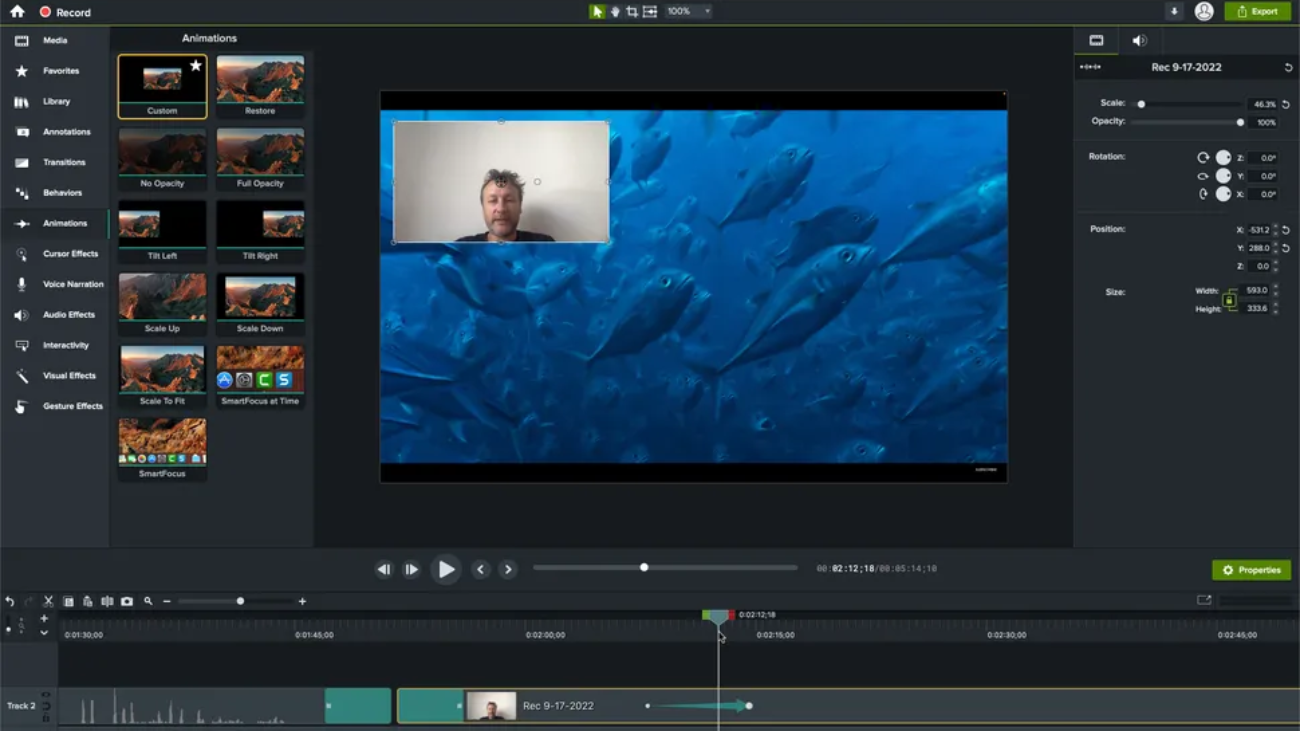
Camtasia remains one of the strongest options because it combines high-quality screen recording with a powerful built-in video editor.
Unlike basic recording tools, Camtasia is designed for users who want polished videos without learning professional editing software.
It works well for:
- Online courses
- Software tutorials
- Training videos
- YouTube content
- Business presentations
Key Features
- Screen and webcam recording
- Multi-track editing
- Cursor effects
- Transitions
- Templates
- Audio editing
- Captions
- AI-assisted features
Camtasia’s biggest strength is workflow. Users can record, edit, enhance, and export videos without switching between multiple applications.
Pros
✔ Beginner-friendly
✔ Professional editing tools
✔ Works on Windows and macOS
✔ Excellent tutorial creation features
Cons
✘ More expensive than many alternatives
2. OBS Studio
Best Free Screen Recorder
OBS Studio is one of the most popular free screen recording tools available.
Originally known for live streaming, OBS has become a favorite among:
- YouTubers
- Streamers
- Gamers
- Technical creators
Unlike many free applications, OBS is completely open-source and does not add watermarks.
Features
- Unlimited recording
- Multiple scenes
- Advanced audio mixer
- Custom layouts
- Webcam support
- Streaming integration
Its flexibility is unmatched, but beginners may need some time to understand all settings.
Pros
✔ Completely free
✔ No watermark
✔ Professional features
✔ Excellent for streaming
Cons
✘ Learning curve for beginners
✘ No built-in video editor
3. ScreenFlow
Best Screen Recorder for Mac Users
ScreenFlow is a premium screen recorder designed specifically for macOS users.
It combines smooth recording performance with advanced editing tools.
Popular uses include:
- Product demos
- Training videos
- App tutorials
- Educational content
Features
- High-quality screen capture
- Webcam recording
- Multi-track editing
- Animations
- Text effects
- Audio controls
For Mac creators who want recording and editing together, ScreenFlow is one of the strongest choices.
4. TechSmith Snagit
Best for Quick Tutorials and Workplace Communication
Snagit focuses on fast visual communication rather than complex video production.
It is ideal for:
- Explaining workflows
- Creating guides
- Sharing feedback
- Recording short videos
Features include:
- Screen capture
- Short recordings
- Image editing
- Annotations
- Templates
Snagit works especially well for professionals who create documentation and training materials.
5. EaseUS RecExperts
Best for Small Businesses
EaseUS RecExperts offers a simple interface with powerful recording options.
Users can capture:
- Full screen
- Selected areas
- Webcam
- Audio
- Online meetings
- Gameplay
Its straightforward design makes it suitable for businesses that need reliable recordings without complicated settings.
6. ScreenPal
Best Budget-Friendly Recorder
ScreenPal (previously Screencast-O-Matic) provides an affordable solution for teachers, students, and professionals.
Features include:
- Screen recording
- Webcam overlay
- Editing tools
- Annotations
- Easy sharing
The platform balances simplicity and functionality, making it accessible for beginners.
7. Loom
Best for Team Collaboration
Loom has become popular because it turns screen recording into a communication tool.
Instead of scheduling meetings, users can quickly record explanations and share a link.
Common uses:
- Team updates
- Product feedback
- Sales demos
- Customer support
Key advantages:
- Instant cloud sharing
- Browser recording
- Webcam support
- Comments and reactions
For remote teams, Loom can reduce unnecessary meetings.
8. ShareX
Best Free Tool for Windows Power Users
ShareX is a lightweight, open-source screen capture tool.
It supports:
- Screen recording
- Screenshots
- GIF creation
- Automated workflows
- File sharing
It offers impressive customization, although beginners may find the interface less polished.
Screen Recorder Comparison
| Software | Best For | Free Version | Platform |
|---|---|---|---|
| Camtasia | Professional videos | Trial | Windows, Mac |
| OBS Studio | Streaming & gaming | Yes | Windows, Mac, Linux |
| ScreenFlow | Mac creators | Trial | Mac |
| Snagit | Tutorials | Trial | Windows, Mac |
| EaseUS RecExperts | Business | Limited | Windows, Mac |
| ScreenPal | Beginners | Yes | Multiple |
| Loom | Remote teams | Yes | Web/Desktop |
| ShareX | Advanced users | Yes | Windows |
Best Screen Recorder for Different Users
Content Creators
Recommended:
- Camtasia
- OBS Studio
- ScreenFlow
These provide better control over video quality and editing.
Gamers
Recommended:
- OBS Studio
OBS offers performance control, custom scenes, and streaming support.
Teachers and Students
Recommended:
- ScreenPal
- Loom
- Camtasia
These tools make educational content creation simple.
Businesses
Recommended:
- Snagit
- Loom
- EaseUS RecExperts
They focus on fast communication and productivity.
Free vs Paid Screen Recording Software
Free Tools
Advantages:
- No cost
- Good recording quality
- Suitable for basic use
Limitations:
- Fewer editing features
- Limited support
- Learning curve
Paid Tools
Advantages:
- Advanced editing
- Better support
- Professional templates
- AI features
Limitations:
- Subscription or license cost
How AI Is Improving Screen Recording
AI is changing video creation by reducing manual editing work.
New screen recorders now include:
- Automatic captions
- Background noise removal
- Smart highlights
- Text-based video editing
- Auto-generated summaries
- Voice enhancement
These features help creators produce professional videos faster.
Tips for Better Screen Recordings
Follow these practices:
- Close unnecessary applications.
- Record in a quiet environment.
- Use a good microphone.
- Choose the right resolution.
- Prepare your script beforehand.
- Test audio before recording.
- Keep videos focused and concise.
Small improvements can significantly increase video quality.
Future of Screen Recording Software
Screen recording tools are becoming complete video creation platforms.
Future improvements will likely focus on:
- AI video editing
- Real-time translations
- Automatic tutorials
- Smart video summaries
- Better collaboration features
- Cloud-based production workflows
As remote work and online education continue growing, screen recording will remain an essential digital communication tool.
Final Verdict
The best screen recorder depends on what you create.
For professional tutorials and polished videos, Camtasia provides one of the most complete recording and editing experiences. For users who need a powerful free option, OBS Studio remains unmatched. Mac creators may prefer ScreenFlow, while businesses looking for quick communication tools should consider Loom or Snagit.
Whether you’re teaching, gaming, creating content, or collaborating with a remote team, today’s screen recorders offer powerful features that make video creation easier than ever.
Frequently Asked Questions
What is the best screen recorder?
Camtasia is one of the best overall choices because it combines easy recording with professional editing tools, while OBS Studio is the strongest free option.
What is the best free screen recorder?
OBS Studio is widely considered one of the best free screen recorders because it offers unlimited recording, streaming tools, and advanced customization without watermarks.
Can I record my screen without installing software?
Yes. Some browser-based tools like Loom allow screen recording without traditional desktop software installation.
Which screen recorder is best for YouTube?
OBS Studio, Camtasia, and ScreenFlow are popular choices among YouTube creators because they support high-quality recording and professional workflows.
Are screen recorders safe?
Trusted screen recorders from reputable developers are safe. Avoid unknown tools that request unnecessary permissions or bundle unwanted software.